Quick answer: Canon printer error codes and solutions — Support code 1300 (paper jam): turn off printer, open front and rear covers, remove jammed paper in the direction of the paper path, check for torn fragments; support code 1686 (ink may be out): press OK to continue printing; support code 1688 (ink out): replace the empty cartridge; support code 5100 (carriage error): unplug printer, open front cover, remove any obstruction from the carriage path, check carriage moves freely; support code 5200 (ink absorber full): contact Canon service center for ink absorber reset; error B200 (printhead or logic board failure): unplug for 10 minutes, slide carriage to center, restart — if it persists, the printhead or printer requires replacement.
The Canon Support Code That Appeared After a Successful Print Job
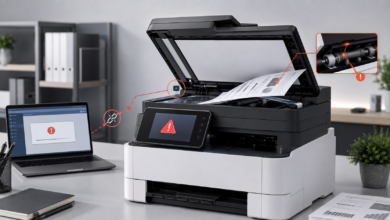
The Canon PIXMA finished printing a 40-page document without any problem. The last page came out cleanly. Then, as the printer was returning the carriage to its home position, support code 5100 appeared on the display. The carriage had stopped halfway across the printer. Opening the front cover revealed the cause: a small piece of tape — from the packaging of a recently installed ink cartridge — had fallen into the carriage path and lodged between the carriage and the right side of the printer frame. The tape was less than a centimeter wide. Removing it with tweezers cleared the error immediately.
That experience captures the most important thing about Canon printer error codes and solutions: Canon support codes identify the subsystem that detected the problem, but the actual cause is often something small and unexpected — a piece of tape, a torn paper fragment, a cartridge installed in the wrong slot. The support code tells you where to look; a flashlight and careful inspection reveal what to fix. Canon’s support code system is one of the most organized in the printer industry — the four-digit code structure makes it straightforward to identify the error category and consult the correct troubleshooting documentation.
How Canon Printer Support Codes Are Organized
Canon uses a four-digit support code system for PIXMA inkjet printers, MAXIFY business inkjet printers, and imageCLASS laser printers. The first digit or first two digits of the support code identify the error category. 1000–1099 codes indicate paper feed errors (no paper, wrong paper size). 1300–1399 codes indicate paper jam errors (the specific code identifies the jam location). 1600–1699 codes indicate ink and cartridge errors. 2100–2199 codes indicate paper size or type mismatch errors. 4100–4199 codes indicate print data errors. 5000–5999 codes indicate hardware errors (carriage, motor, sensor). 6000–6999 codes indicate paper feed motor and hardware errors. 6800–6900 codes indicate ink absorber errors. B200 is a standalone critical error code for printhead or logic board failure.
Canon support codes appear on the printer’s LCD display panel (on models with a display) and in the Canon IJ Status Monitor on Windows (accessible from the system tray) or the Canon IJ Printer Utility on macOS. The Canon IJ Status Monitor displays the support code with a plain-language description and a link to Canon’s online support documentation for that specific code. Look up any Canon support code at usa.canon.com/support by entering the printer model number and the support code.
Canon Printer Error Codes and Solutions
Canon Paper Jam Support Codes — 1300, 1303, 1304, 1313
Canon paper jam support codes use the 13xx format where the last two digits identify the jam location. Support code 1300 indicates a paper jam in the paper feed area (the front paper cassette or the automatic document feeder). Support code 1303 indicates a paper jam in the rear tray (the manual feed slot at the back of the printer). Support code 1304 indicates a paper jam in the duplex unit (the automatic two-sided printing mechanism). Support code 1313 indicates a paper jam in the paper output area. On Canon PIXMA printers without a display, the paper jam is indicated by the Alarm lamp flashing a specific number of times — consult the printer’s manual for the flash count to support code mapping.
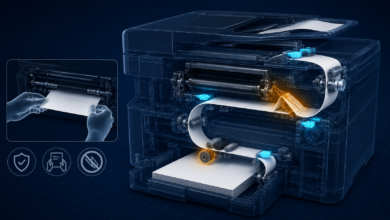
Fix for Canon paper jam support codes: turn off the printer and unplug the power cable before reaching inside. For support code 1300 (front feed area): open the front cover, look inside with a flashlight, and gently pull any jammed paper toward you (in the direction the paper exits the printer). For support code 1303 (rear tray): open the rear cover by pressing the tabs on both sides and pulling it toward you, remove any jammed paper. For support code 1304 (duplex unit): open the duplex cover (on the back of the printer, below the rear cover) and remove any jammed paper. After clearing the jam, check for torn paper fragments throughout the paper path — even a small fragment will cause repeated jam errors. Remove and reinsert the paper cassette, ensure the paper guides are snug against the paper stack, and restart the printer.
Canon Ink and Cartridge Support Codes — 1686, 1688, 1700, 1401
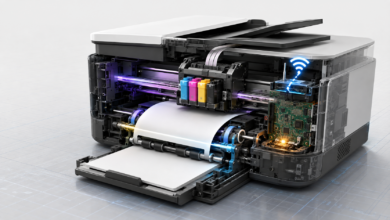
Canon ink and cartridge support codes use the 16xx and 14xx formats. Support code 1686 means the ink level in one or more cartridges is very low — the printer can continue printing but print quality may be affected. Press the printer’s OK button or the Stop/Reset button to dismiss the warning and continue printing. Support code 1688 means one or more ink cartridges are empty — the printer cannot continue printing until the empty cartridge is replaced. Support code 1700 means the ink absorber (a pad inside the printer that absorbs excess ink from printhead cleaning operations) is nearly full — the printer can continue printing but will eventually require service. Support code 1401 means a cartridge is not installed or is installed incorrectly.
Fix for Canon ink support codes: for 1688 (ink out), open the cartridge access cover — the cartridge holder moves to the replacement position automatically. Remove the empty cartridge by pressing the tab and pulling it out. Insert the new cartridge of the correct model number and press until it clicks. Verify the cartridge model number on Canon’s compatibility page — Canon PG-245/CLI-246 are compatible with PIXMA MG2520, MG2522, MG2920, MG2922, MG2924, MX490, MX492; Canon PG-275/CL-276 are compatible with PIXMA TS3520, TS3522, TR4720; Canon PG-243/CL-244 are compatible with PIXMA MG2420, MG2520, MG3020. For support code 1401 (cartridge not recognized): remove the cartridge, clean the gold contacts with a lint-free cloth dampened with distilled water, and reseat firmly until it clicks.
Canon Hardware Support Codes — 5100 (Carriage), 5200 (Ink Absorber), 6000
Canon hardware support codes in the 5000–6999 range indicate mechanical or electronic failures. Support code 5100 is a carriage error — the print carriage cannot move freely or has stopped in an unexpected position. Causes include foreign objects in the carriage path, a damaged carriage belt, or a carriage motor failure. Support code 5200 means the ink absorber is full — the ink absorber pad inside the printer has reached its maximum ink absorption capacity and must be replaced or reset by a Canon service center. Support code 6000 indicates a paper feed motor error — the motor that drives the paper feed rollers has failed or is not responding. Support code 6800 and 6801 indicate ink absorber errors similar to 5200.
Fix for Canon hardware support codes: for 5100 (carriage error), unplug the printer, open the front cover, manually slide the carriage to the center of the printer, inspect the carriage path with a flashlight for any obstruction (paper fragments, tape, foreign objects), remove any obstruction, check that the carriage moves freely from left to right, and restart. For 5200 (ink absorber full), the printer requires service center repair — Canon does not provide a user-accessible reset for the ink absorber counter. Contact Canon Support at usa.canon.com/support to locate an authorized service center. For 6000 (paper feed motor error), unplug the printer for 10 minutes and restart — if the error persists, the paper feed motor requires service center repair.
Canon Scanner and Communication Errors — 9000, 9500, Connection Errors
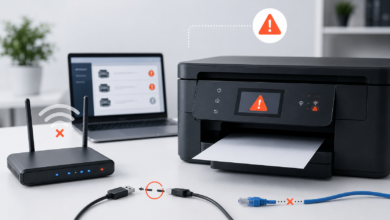
Canon scanner errors appear on multifunction PIXMA and MAXIFY printers that include a flatbed scanner. Support code 9000 indicates a scanner error — the scanner unit cannot initialize or the scanner lamp has failed. Support code 9500 indicates a scanner motor error. Plain-language communication errors (“Cannot Communicate with Scanner,” “Check the connection”) indicate a USB or Wi-Fi connection failure between the computer and the printer’s scanner function. On Canon PIXMA all-in-one printers, the printer and scanner functions share the same Wi-Fi connection — a wireless connection error affects both printing and scanning.
Fix for Canon scanner errors: for support code 9000 (scanner error), turn off the printer, unplug for 60 seconds, and restart — if the error persists, the scanner lamp or scanner unit requires service center repair. For communication errors, restart the printer and the router. Run the Canon IJ Network Device Setup Utility (available at usa.canon.com/support) to reconnect the printer to the Wi-Fi network. Ensure the printer and computer are on the same Wi-Fi network. Reinstall the Canon scanner driver from usa.canon.com/support for the specific printer model and operating system version. On macOS, open System Settings → Printers & Scanners → select the Canon printer → check that the scanner is listed and enabled.
⚠️ Canon Error B200 — Critical Printhead or Logic Board Failure
Canon error B200 is the most serious Canon printer error code. It indicates a printhead failure, a logic board failure, or a voltage error in the printhead circuit. B200 appears on Canon PIXMA inkjet printers and is accompanied by the printer refusing to print or initialize. B200 is distinguished from other Canon errors by the letter prefix (B) rather than a numeric support code. The error is caused by a printhead that has overheated, a printhead with failed ink nozzles that are causing a short circuit, a logic board failure, or — in some cases — a cartridge that is causing a voltage error in the printhead circuit.
Attempted fixes for Canon B200 before contacting Canon Support: (1) Turn off the printer and unplug the power cable for 10 minutes. (2) Open the front cover while the printer is off and manually slide the carriage to the center of the printer. (3) Close the front cover. (4) Plug in the power cable and turn on the printer — if the carriage moves to the left and the printer initializes without the B200 error, the fix worked. (5) If B200 persists, remove all ink cartridges, clean the printhead contacts with a lint-free cloth dampened with distilled water, reinstall the cartridges, and restart. (6) If B200 persists after these steps, the printhead or logic board has failed. On Canon PIXMA Pro series printers with user-replaceable printheads, replace the printhead ($40–$80). On Canon PIXMA consumer printers with integrated printheads (PIXMA MG, TS, TR series), the printer typically requires replacement — compare the cost of a new printer to the cost of Canon service center repair before deciding. Canon service center repair for B200 typically costs $80–$150, which often exceeds the value of an entry-level PIXMA printer.
How to Fix Canon Printer Error Codes: Step-by-Step
Step 1: Note the Support Code and Look It Up on Canon’s Support Site
Note the exact support code displayed on the printer’s LCD panel or in the Canon IJ Status Monitor on the computer. Look up the support code at usa.canon.com/support — enter the printer model number (printed on the front of the printer, e.g., “Canon PIXMA TS3522” or “Canon MAXIFY MB5420”) and the support code. Canon’s support site provides model-specific troubleshooting steps with illustrated diagrams showing the exact location of paper jams, cartridge slots, and access panels for each printer model. The Canon IJ Status Monitor on Windows also provides a direct link to the support documentation for the displayed error code.
Step 2: Perform a Full Power Cycle
Turn off the printer using the power button. Unplug the power cable from the back of the printer. Wait 60 seconds. Plug the power cable back in and turn the printer on. A full power cycle clears the printer’s RAM, resets the sensor states, and clears temporary errors caused by communication timeouts or transient hardware conditions. This resolves approximately 25% of Canon support codes without any further action — particularly support codes caused by temporary sensor errors (5100 after a carriage bump, 6000 after a paper feed hesitation) rather than actual hardware failures.
Step 3: Clear the Paper Path and Check for Obstructions
For paper jam support codes (1300, 1303, 1304, 1313) and carriage errors (5100): open all access panels — the front cover, the rear cover, and the duplex cover if present. Use a flashlight to inspect the entire paper path and the carriage path. Remove any jammed paper by pulling gently in the direction of the paper path. Check for torn paper fragments, pieces of tape from cartridge packaging, and any foreign objects that may have fallen into the printer. Remove and reinsert the paper cassette, ensure the paper guides are correctly positioned, and verify that the paper type and size match the printer’s paper settings.
Step 4: Replace or Reseat Ink Cartridges
For ink and cartridge support codes (1686, 1688, 1401): open the cartridge access cover and allow the carriage to move to the replacement position. Remove the cartridge showing the error. For empty cartridges (1688): insert a new Canon cartridge of the correct model number — verify the model number on Canon’s compatibility page. For cartridge not recognized errors (1401): clean the gold contacts on the cartridge and the corresponding contacts inside the printer with a lint-free cloth dampened with distilled water, then reseat the cartridge firmly until it clicks. For ink absorber errors (5200, 1700): the printer can continue printing for a limited time after 1700 — contact Canon service for 5200.
Step 5: Reinstall the Canon Printer Driver or Contact Canon Support
If the error persists after a power cycle, paper path inspection, and cartridge check, reinstall the Canon printer driver. In Windows, go to Settings → Bluetooth & devices → Printers & scanners → select the Canon printer → Remove device. Download the full driver package from usa.canon.com/support for the specific printer model and Windows version — use the “Recommended” driver package which includes the Canon IJ Status Monitor and the Canon IJ Network Device Setup Utility. For errors that persist after driver reinstallation — particularly B200, 5200, 6000, and 9000 — contact Canon Support at usa.canon.com/support or call Canon’s printer support line. Check the printer’s warranty status before contacting support — Canon provides a one-year limited warranty on PIXMA printers and a three-year limited warranty on imageCLASS laser printers.
Frequently Asked Questions About Canon Printer Error Codes
What are the most common Canon printer support codes?
The most common Canon printer support codes are 1300 (paper jam in feed area), 1688 (ink cartridge empty), 5100 (carriage error), 5200 (ink absorber full), and B200 (printhead or logic board failure). Support codes 1300 and 1688 account for the majority of Canon printer errors and are resolved by the user. Support codes 5200 and B200 typically require Canon service center repair or printer replacement.
How do I fix Canon support code 5200?
Canon support code 5200 means the ink absorber — a pad inside the printer that absorbs excess ink from printhead cleaning operations — is full and must be replaced or reset. Canon does not provide a user-accessible reset for the ink absorber counter. Fix: contact Canon Support at usa.canon.com/support to locate an authorized service center. The service center replaces the ink absorber pad and resets the counter. Service cost is typically $50–$80. For older or entry-level PIXMA printers, compare the service cost to the cost of a new printer before authorizing the repair.
How do I fix Canon support code 1401?
Canon support code 1401 means a cartridge is not installed or is not recognized. Fix: open the cartridge access cover, remove the cartridge showing the error, clean the gold electrical contacts on the cartridge with a lint-free cloth dampened with distilled water, clean the corresponding contacts inside the printer carriage, and reseat the cartridge firmly until it clicks. If the error persists with a new genuine Canon cartridge, the cartridge contact in the printer carriage may be damaged — contact Canon Support.
Why does my Canon printer show a support code after replacing the ink?
A Canon printer showing a support code after replacing the ink is usually caused by: the new cartridge not being seated firmly enough (press until it clicks), the wrong cartridge model number being installed (verify the model number on Canon’s compatibility page), the protective orange tape not being fully removed from the new cartridge (check for any remaining tape on the cartridge contacts or nozzles), or the cartridge contacts being dirty (clean with distilled water). If a genuine Canon cartridge shows a support code after all these steps, the cartridge may be defective — Canon offers a replacement guarantee for defective genuine cartridges.
How do I connect my Canon printer to Wi-Fi after a support code?
After resolving a Canon support code, reconnect the printer to Wi-Fi using the wireless setup wizard: on the printer’s control panel, press the Wi-Fi button or go to Settings → Wireless LAN Setup → Standard Setup → select your Wi-Fi network → enter the password. Alternatively, use the Canon IJ Network Device Setup Utility (available at usa.canon.com/support) to reconnect the printer from the computer. Print a network configuration page from the printer’s control panel to confirm the printer has received an IP address. If the printer connects to Wi-Fi but the computer cannot find it, reinstall the Canon printer driver using the full driver package from usa.canon.com/support.
Canon Printer Error Code Repair Costs
| Support Code / Error | Common Cause | DIY Part Cost (USD) | Professional Repair Cost (USD) |
|---|---|---|---|
| 1300 / 1303 / 1304 (paper jam) | Misloaded paper, paper fragment, worn pickup roller | $0 (no parts needed) | $50–$100 (service call) |
| 1688 (ink out) | Empty ink cartridge | $10–$35 (genuine Canon cartridge) | $0 (user-replaceable) |
| 1401 (cartridge not recognized) | Dirty contacts, wrong cartridge, failed contact | $0 (cleaning) — $10–$35 (new cartridge) | $50–$80 (carriage contact repair) |
| 5100 (carriage error) | Obstruction in carriage path, carriage belt, carriage motor | $0 (remove obstruction) — $20–$40 (carriage belt) | $80–$150 (service center) |
| 5200 / 6800 (ink absorber full) | Ink absorber pad saturated after ~10,000 pages | $15–$30 (ink absorber kit, advanced DIY) | $50–$80 (service center reset) |
| 6000 (paper feed motor error) | Paper feed motor failure | $20–$50 (paper feed motor, advanced DIY) | $80–$150 (service center) |
| 9000 (scanner error) | Scanner lamp or scanner unit failure | N/A (not user-serviceable) | $80–$150 (service center) |
| B200 (printhead / logic board failure) | Printhead failure or logic board failure | $40–$80 (printhead, Pro series only) | $80–$150 (service center) or replace printer |
Conclusion: Canon Support Codes Are a Map, Not a Verdict
The piece of cartridge packaging tape that caused support code 5100 — found only after opening the front cover and looking carefully with a flashlight — was not a hardware failure. It was a small obstruction that the carriage sensor correctly identified as an error. The support code was accurate: the carriage had stopped in an unexpected position. But the cause was trivial and the fix took thirty seconds. That is the most important lesson about Canon printer error codes and solutions: the support code identifies the subsystem and the location of the problem, but the actual cause ranges from trivial (a piece of tape, an empty cartridge) to serious (a failed motor, a failed printhead). The support code is a map to where the problem is, not a verdict on how serious it is.
Canon’s four-digit support code system makes it straightforward to identify the error category: 13xx = paper path, 16xx = ink/cartridge, 51xx = carriage hardware, 52xx/68xx = ink absorber, 60xx = paper feed motor, 90xx = scanner, B200 = critical printhead/logic board. For the first four categories, the fix is almost always user-accessible — clear the paper path, replace the cartridge, remove the obstruction, or clean the contacts. For the last three categories — ink absorber full, paper feed motor failure, scanner failure, and B200 — compare the Canon service center repair cost to the cost of a new printer before committing to a repair. Entry-level Canon PIXMA printers ($50–$100) are often less expensive to replace than to repair for ink absorber or B200 errors. Mid-range PIXMA and MAXIFY printers ($150–$300) are generally worth repairing for carriage belt and paper feed motor replacements.
Sources
- Canon USA Support — Support Code List for Canon PIXMA, MAXIFY, and imageCLASS Printers. Available at: usa.canon.com/support
- Canon IJ Network Device Setup Utility — Canon Printer Network Configuration Tool for Windows and macOS. Available at: usa.canon.com/support
- Canon PIXMA Ink Cartridge Compatibility — Canon Cartridge Model Number Reference. Available at: usa.canon.com/shop/ink-toner
- Canon Authorized Service Locator — Find Canon Authorized Service Centers in the United States. Available at: usa.canon.com/support/service-and-repair
- Microsoft Support — Fix Printer Connection and Printing Problems in Windows. Available at: support.microsoft.com
This article is for informational purposes only. Canon printer support codes, troubleshooting steps, and repair costs vary by printer model, firmware version, and region. Always check usa.canon.com/support for model-specific troubleshooting documentation before performing advanced repairs. Canon error B200 and support code 5200 typically require Canon authorized service center repair — compare the repair cost to the cost of a new printer before authorizing service on older or entry-level Canon PIXMA printers.
printer support line. Check the printer’s warranty status before contacting support — Canon provides a one-year limited warranty on PIXMA printers and a three-year limited warranty on imageCLASS laser printers.
Frequently Asked Questions About Canon Printer Error Codes
What are the most common Canon printer support codes?
The most common Canon printer support codes are 1300 (paper jam in feed area), 1688 (ink cartridge empty), 5100 (carriage error), 5200 (ink absorber full), and B200 (printhead or logic board failure). Support codes 1300 and 1688 account for the majority of Canon printer errors and are resolved by the user. Support codes 5200 and B200 typically require Canon service center repair or printer replacement.
How do I fix Canon support code 5200?
Canon support code 5200 means the ink absorber — a pad inside the printer that absorbs excess ink from printhead cleaning operations — is full and must be replaced or reset. Canon does not provide a user-accessible reset for the ink absorber counter. Fix: contact Canon Support at usa.canon.com/support to locate an authorized service center. The service center replaces the ink absorber pad and resets the counter. Service cost is typically $50–$80. For older or entry-level PIXMA printers, compare the service cost to the cost of a new printer before authorizing the repair.
How do I fix Canon support code 1401?
Canon support code 1401 means a cartridge is not installed or is not recognized. Fix: open the cartridge access cover, remove the cartridge showing the error, clean the gold electrical contacts on the cartridge with a lint-free cloth dampened with distilled water, clean the corresponding contacts inside the printer carriage, and reseat the cartridge firmly until it clicks. If the error persists with a new genuine Canon cartridge, the cartridge contact in the printer carriage may be damaged — contact Canon Support.
Why does my Canon printer show a support code after replacing the ink?
A Canon printer showing a support code after replacing the ink is usually caused by: the new cartridge not being seated firmly enough (press until it clicks), the wrong cartridge model number being installed (verify the model number on Canon’s compatibility page), the protective orange tape not being fully removed from the new cartridge (check for any remaining tape on the cartridge contacts or nozzles), or the cartridge contacts being dirty (clean with distilled water). If a genuine Canon cartridge shows a support code after all these steps, the cartridge may be defective — Canon offers a replacement guarantee for defective genuine cartridges.
How do I connect my Canon printer to Wi-Fi after a support code?
After resolving a Canon support code, reconnect the printer to Wi-Fi using the wireless setup wizard: on the printer’s control panel, press the Wi-Fi button or go to Settings → Wireless LAN Setup → Standard Setup → select your Wi-Fi network → enter the password. Alternatively, use the Canon IJ Network Device Setup Utility (available at usa.canon.com/support) to reconnect the printer from the computer. Print a network configuration page from the printer’s control panel to confirm the printer has received an IP address. If the printer connects to Wi-Fi but the computer cannot find it, reinstall the Canon printer driver using the full driver package from usa.canon.com/support.
Canon Printer Error Code Repair Costs
| Support Code / Error | Common Cause | DIY Part Cost (USD) | Professional Repair Cost (USD) |
|---|---|---|---|
| 1300 / 1303 / 1304 (paper jam) | Misloaded paper, paper fragment, worn pickup roller | $0 (no parts needed) | $50–$100 (service call) |
| 1688 (ink out) | Empty ink cartridge | $10–$35 (genuine Canon cartridge) | $0 (user-replaceable) |
| 1401 (cartridge not recognized) | Dirty contacts, wrong cartridge, failed contact | $0 (cleaning) — $10–$35 (new cartridge) | $50–$80 (carriage contact repair) |
| 5100 (carriage error) | Obstruction in carriage path, carriage belt, carriage motor | $0 (remove obstruction) — $20–$40 (carriage belt) | $80–$150 (service center) |
| 5200 / 6800 (ink absorber full) | Ink absorber pad saturated after ~10,000 pages | $15–$30 (ink absorber kit, advanced DIY) | $50–$80 (service center reset) |
| 6000 (paper feed motor error) | Paper feed motor failure | $20–$50 (paper feed motor, advanced DIY) | $80–$150 (service center) |
| 9000 (scanner error) | Scanner lamp or scanner unit failure | N/A (not user-serviceable) | $80–$150 (service center) |
| B200 (printhead / logic board failure) | Printhead failure or logic board failure | $40–$80 (printhead, Pro series only) | $80–$150 (service center) or replace printer |
Conclusion: Canon Support Codes Are a Map, Not a Verdict
The piece of cartridge packaging tape that caused support code 5100 — found only after opening the front cover and looking carefully with a flashlight — was not a hardware failure. It was a small obstruction that the carriage sensor correctly identified as an error. The support code was accurate: the carriage had stopped in an unexpected position. But the cause was trivial and the fix took thirty seconds. That is the most important lesson about Canon printer error codes and solutions: the support code identifies the subsystem and the location of the problem, but the actual cause ranges from trivial (a piece of tape, an empty cartridge) to serious (a failed motor, a failed printhead). The support code is a map to where the problem is, not a verdict on how serious it is.
Canon’s four-digit support code system makes it straightforward to identify the error category: 13xx = paper path, 16xx = ink/cartridge, 51xx = carriage hardware, 52xx/68xx = ink absorber, 60xx = paper feed motor, 90xx = scanner, B200 = critical printhead/logic board. For the first four categories, the fix is almost always user-accessible — clear the paper path, replace the cartridge, remove the obstruction, or clean the contacts. For the last three categories — ink absorber full, paper feed motor failure, scanner failure, and B200 — compare the Canon service center repair cost to the cost of a new printer before committing to a repair. Entry-level Canon PIXMA printers ($50–$100) are often less expensive to replace than to repair for ink absorber or B200 errors. Mid-range PIXMA and MAXIFY printers ($150–$300) are generally worth repairing for carriage belt and paper feed motor replacements.