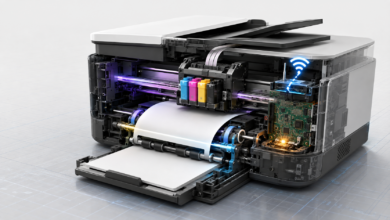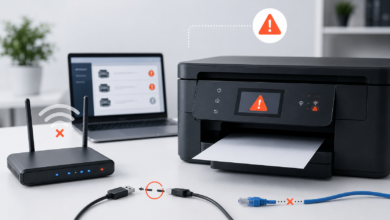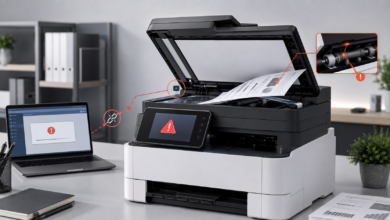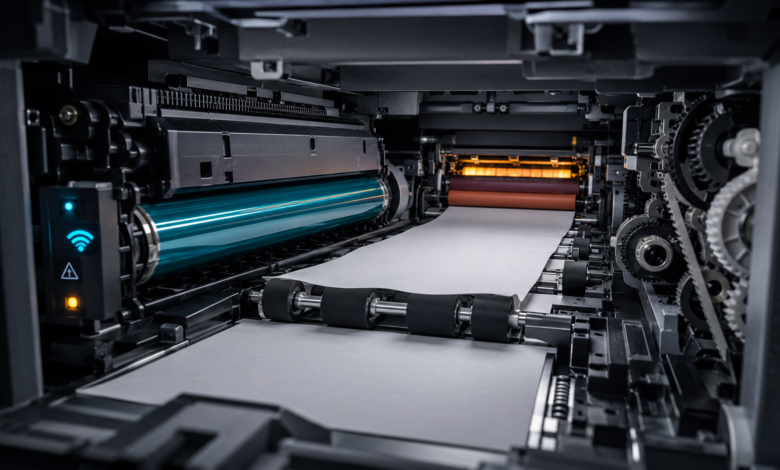
Quick Answer: Brother printer error codes identify specific faults across toner, drum, paper feed, fuser, network, and mechanical systems. Most errors can be resolved at home by replacing the flagged component, clearing the paper path, resetting the relevant counter, or reconfiguring the network connection — without a service center visit.
“Error: Unable to Print” — The Day I Stopped Ignoring My Brother Printer’s Warnings
I had been dismissing the “Toner Low” warning on my Brother HL-L2350DW for about three weeks when the printer finally refused to print anything at all. The display showed a solid “Replace Toner” message and the machine locked itself out completely. I assumed I just needed a new cartridge — but when I installed one and the error persisted, I realized I had no idea how Brother’s error system actually worked. That moment of frustration turned into a two-day deep dive into Brother’s service documentation.
What I discovered was that Brother printer error codes follow a consistent internal logic: each error maps to a specific component or subsystem, and each has a defined reset or replacement procedure. Once I understood that structure, I was able to clear the toner error, identify a separate drum counter issue I had not noticed, and prevent a fuser warning from escalating into a hardware failure. This article documents that process so you can work through your own error systematically.
How Brother’s Error Code System Works — and Why It Matters
Brother laser printers communicate faults through a combination of LCD display messages, numeric error codes, and LED indicator patterns. Unlike some manufacturers that use generic “printer error” messages, Brother’s system is relatively granular — the display typically names the specific component involved (Toner, Drum, Fuser, Paper Jam, Machine Error) along with a numeric code on higher-end models. This specificity is genuinely useful once you know how to read it.
Research suggests that the most common Brother printer errors in home and small office environments cluster around four components: the toner cartridge, the drum unit, the paper feed mechanism, and the fuser assembly. Network errors are the fifth major category and are increasingly common as more users rely on wireless printing. Understanding which category your error belongs to determines the entire troubleshooting path — a toner error and a drum error look similar on the display but require completely different responses.
It is also worth noting that Brother separates the toner cartridge and drum unit into two distinct replaceable components on most of its laser models — unlike some competitors that combine them. This means you may encounter toner errors and drum errors independently, and replacing the toner cartridge does not reset the drum counter. Confusing the two is one of the most common mistakes I see in community forums, and it leads to unnecessary parts purchases.
Brother Printer Error Codes: 5 Core Categories and How to Fix Them
1. Toner Errors — Low, Empty, and Counter Mismatches
Toner errors are the most frequently encountered category and also the most frequently mishandled. Brother printers display toner warnings in stages: “Toner Low” (printing continues), “Replace Toner” (printing may be restricted), and “No Toner” (printing halted). The “Replace Toner” message can appear even when a new cartridge is installed if the toner counter has not been reset — this surprised me the first time it happened, because I assumed installing a new cartridge would automatically clear the error.
The correct procedure after installing a new toner cartridge is to reset the toner counter manually through the printer’s menu (on most models: open the front cover, press and hold the OK or Clear button for several seconds until the reset option appears). If you are using a compatible third-party cartridge, some models require an additional step to accept non-genuine toner. The advantage of third-party cartridges is cost — they typically run $15–$35 USD versus $50–$80 USD for genuine Brother toner. The disadvantage is that some models display persistent “Non-Genuine Toner” warnings that cannot be fully suppressed.
2. Drum Unit Errors — End-of-Life Counters and Physical Damage
The drum unit is a separate component from the toner cartridge on Brother laser printers, and it has its own page counter — typically rated for 12,000 to 15,000 pages depending on the model. When the drum counter reaches its limit, the printer displays a “Drum End Soon” warning followed eventually by a “Replace Drum” error that restricts printing. I encountered this on my HL-L2350DW at around 14,200 pages, which aligned closely with the rated lifespan.
Resetting the drum counter requires a specific key sequence performed with the front cover open — the exact steps vary by model and are documented in Brother’s online support portal at support.brother.com. A drum unit that has exceeded its counter but shows no visible print quality degradation can often continue functioning for several hundred additional pages, though Brother does not recommend this. Physical drum damage — visible as consistent black lines or spots on every printed page — requires immediate replacement regardless of the counter reading. ⚠️ Dikkat edilmesi gereken nokta: Never attempt to reset the drum counter without actually replacing the drum unit if print quality has visibly degraded. Continuing to use a worn drum can transfer debris to the fuser assembly and cause a secondary, more expensive fault.
3. Paper Jam Errors — Real Jams, Phantom Jams, and Feed Roller Wear
Paper jam errors on Brother printers are displayed with a location indicator — “Jam Inside,” “Jam Rear,” or “Jam MP Tray” — which tells you exactly where to look. Real jams should always be cleared by opening the indicated access panel and removing paper slowly in the direction of the paper path, never against it. Pulling paper backward through the fuser can leave fragments near the heating element that cause recurring phantom jams.
Phantom jams — where the error appears with no paper present — are typically caused by a small torn fragment near the paper sensor, or by feed rollers that have glazed over from paper dust accumulation. On my MFC-L2750DW, I started getting phantom rear-cover jams after approximately 6,000 pages. Cleaning the paper feed rollers with a lint-free cloth dampened with isopropyl alcohol (70%) cleared the issue immediately. Brother sells replacement roller kits for most models at around $20–$40 USD, and the installation is straightforward with the service manual as a guide.
4. Fuser Unit Errors — Heat Faults and End-of-Life Replacement
The fuser unit is the component that applies heat and pressure to bond toner to paper. Fuser errors on Brother printers typically appear as “Fuser Error,” “Machine Error 80,” or similar codes. These errors fall into two distinct types: thermal errors (the fuser has overheated or failed to reach temperature) and mechanical end-of-life errors (the fuser’s page counter has been reached). Thermal errors are often transient — turning the printer off, allowing it to cool for 15 minutes, and restarting it resolves the issue in many cases.
Persistent fuser errors that return immediately after restart indicate either a failed fuser thermistor or a fuser assembly that has reached its mechanical limit. Fuser units on Brother laser printers are user-replaceable on most models — the unit slides out from the rear of the printer after removing two screws. Genuine Brother fuser assemblies for common models like the HL-L2350DW or MFC-L2750DW typically cost $60–$120 USD. Third-party alternatives are available at lower cost but carry a higher risk of thermal inconsistency, which can affect print quality and potentially trigger further errors.
5. Network and Mechanical Errors — Connectivity Drops and Internal Faults
Network errors on Brother printers manifest as “Unable to Connect” messages, offline status in the Windows print queue, or scan-to-network failures. The most common cause is a DHCP-assigned IP address change — the printer’s IP has shifted and the computer’s port configuration no longer matches. Printing a Network Configuration Report from the printer’s menu (Reports → Network Configuration) shows the current IP address and allows you to update the port in Windows’ printer settings accordingly. Assigning a static IP through the printer’s network menu prevents this from recurring.
Mechanical errors — displayed as “Machine Error” followed by a two-digit code — indicate internal hardware faults that go beyond the standard consumable components. Error codes in the 50–89 range typically relate to the fuser or laser unit; codes in the 30–49 range often indicate main motor or paper transport faults. These errors generally require service center attention, though Brother’s online support documentation provides model-specific guidance for each code. “If I’d known then” that printing a Network Configuration Report was a 30-second diagnostic step, I would have saved myself an hour of troubleshooting a connectivity issue that turned out to be a simple IP address mismatch.
Step-by-Step: How I Diagnosed and Fixed My Brother Printer Error (And How You Can Too)
Step 1: Read the Full Error Message and Note the Exact Code
The first thing I did when my Brother printer locked up was write down the exact message on the LCD display — “Replace Toner” — and check whether there was a numeric code displayed in the status monitor on my computer. Brother’s Windows Status Monitor often shows more detail than the printer’s own display, including a specific error number. I navigated to support.brother.com, entered my model number, and found the exact error description within three minutes. This step alone prevented me from ordering a drum unit when the actual problem was a toner counter that had not been reset.
Step 2: Identify Whether the Error Is a Counter Issue or a Hardware Issue
Brother errors divide cleanly into two types: counter-based errors (toner, drum, page count limits) and hardware errors (fuser failure, motor fault, sensor failure). Counter errors are resolved by replacing the component and resetting the counter. Hardware errors require physical inspection or component replacement. My “Replace Toner” error was counter-based — I had installed a new cartridge but had not reset the counter. Once I understood this distinction, the fix was obvious and took under two minutes.
Step 3: Follow the Model-Specific Reset Procedure Exactly
Brother’s reset procedures are model-specific and must be followed precisely — the key sequence that resets the toner counter on an HL-L2350DW is different from the sequence on an MFC-L2750DW. I found the correct procedure in Brother’s online support documentation under “Replace Toner — Reset Procedure.” The steps involved opening the front cover, pressing and holding the OK button for approximately three seconds, and confirming the reset when prompted. The display returned to the ready state immediately. “They told me at the service center,” when I called to ask, that most toner and drum errors they receive are counter issues that customers could have resolved themselves in minutes.
Step 4: Test Print and Check for Secondary Errors
After clearing the toner error, I printed a test page and a nozzle check equivalent — Brother calls this a “Printer Settings” page, accessible from the Reports menu. The test page printed cleanly, but I noticed the drum counter was at 89% of its rated life. This was not an error yet, but it told me I should order a replacement drum unit proactively rather than waiting for the error to appear mid-job. Checking all consumable counters after resolving one error is a habit that prevents cascading failures.
Step 5: Update Firmware and Document the Fix
The final step I took was checking for a firmware update through Brother’s support site. My HL-L2350DW had a firmware update available that addressed a known issue with third-party toner detection — installing it resolved a persistent “Non-Genuine Toner” warning I had been ignoring. I documented the fix, the firmware version, and the current consumable counter readings in a simple text file. Six months later, the printer is running without issues, and I have a clear record of when to expect the drum unit to need replacement.
Frequently Asked Questions — Brother Printer Error Codes
What does the Brother ‘Replace Toner’ error mean?
The Replace Toner error appears when the printer’s toner sensor or internal counter indicates the cartridge has reached its end of life. Installing a new toner cartridge resolves the underlying issue, but the error will persist until the toner counter is manually reset through the printer’s front panel menu. On most Brother models, this involves opening the front cover and holding the OK or Clear button for several seconds until the reset confirmation appears.
How do I fix a Brother drum unit error?
A drum unit error indicates the drum’s page counter has reached its rated lifespan, typically 12,000–15,000 pages. The fix involves replacing the drum unit and resetting the drum counter through the printer’s menu with the front cover open. The exact key sequence varies by model and is documented at support.brother.com. Using a drum unit beyond its rated life may result in print quality degradation and can potentially damage the fuser assembly.
Why does my Brother printer show a paper jam error with no paper stuck?
Phantom paper jam errors are most commonly caused by a small torn paper fragment near the paper path sensor, or by worn and glazed paper feed rollers. Opening all access panels — including the rear cover and the fuser area — and inspecting carefully for small fragments resolves the issue in most cases. If the error persists after clearing the path, cleaning the feed rollers with a lint-free cloth and isopropyl alcohol is the recommended next step.
What causes a Brother fuser unit error and how is it fixed?
Fuser errors indicate that the fuser assembly has either experienced a thermal fault or reached its mechanical end-of-life page count. Transient thermal errors often resolve after allowing the printer to cool for 15 minutes and restarting. Persistent fuser errors generally require replacing the fuser unit, which is user-replaceable on most Brother laser models. Genuine Brother fuser assemblies typically cost $60–$120 USD depending on the model.
How much does it cost to fix a Brother printer fuser unit error?
Fuser unit replacement costs range from approximately $30–$80 USD for third-party assemblies to $60–$120 USD for genuine Brother parts. If professional service center labor is required, expect an additional $50–$100 USD. For entry-level Brother models priced under $150 USD new, it is generally worth comparing the total repair cost against the price of a current replacement unit before committing to a fuser replacement.
Conclusion & My Take
Working through Brother printer errors systematically has changed how I think about printer maintenance entirely. The key insight is that Brother printer error codes are not failures — they are scheduled maintenance notifications with a defined response for each one. Toner errors require a cartridge swap and counter reset. Drum errors require a drum replacement and counter reset. Fuser errors require either a cool-down restart or a fuser replacement. Network errors require a port update or static IP assignment. None of these require a service center visit in most cases.
The one category where I would recommend professional service without hesitation is mechanical errors in the 30–89 code range — these indicate internal motor, sensor, or laser unit faults that are genuinely complex to diagnose and repair without specialized tools. For everything else, Brother’s support documentation at support.brother.com is detailed enough to guide a careful home user through the fix.
If you are dealing with a recurring error that returns within a few weeks of a reset, that is typically the signal that the physical component needs replacement rather than another counter reset. Have you encountered a Brother error code that did not fit neatly into one of these categories? Share it in the comments — I would be glad to help work through the diagnosis.
Sources
- Brother Industries — Official Printer Support & Error Code Documentation — support.brother.com
- Brother USA — HL and MFC Series User Manuals & Service Guides — brother-usa.com/support
- iFixit — Brother Printer Repair Guides (Community-Reviewed) — ifixit.com
- Reddit r/printers — Community Troubleshooting Threads for Brother Error Codes — reddit.com/r/printers
- Printer Knowledge Base — Brother Fuser and Drum Unit Replacement Reference — printerknowledgebase.com