Quick Answer: Epson printer error codes signal specific hardware or software faults — including ink system failures, full waste ink pads, paper feed jams, scanner detection issues, and Wi-Fi connectivity drops. Most errors can be resolved at home by running the built-in diagnostic tools, updating drivers, or resetting the waste ink counter using Epson’s official utilities.
“Why Is My Printer Flashing Red Again?” — The Moment I Started Taking Error Codes Seriously
I had owned my Epson EcoTank ET-2720 for about fourteen months when it started blinking an orange light pattern I had never seen before. I assumed it was a low-ink warning — I had ignored those before — so I pressed the resume button and walked away. Twenty minutes later, the printer had stopped entirely and was displaying a cryptic two-digit code on the status monitor. That was the moment I realized I had been treating error codes as background noise instead of actual diagnostic signals.
I spent the next few days going through Epson’s support documentation, community forums, and a few repair guides to understand what each code actually meant. What I found was surprisingly systematic — Epson’s error architecture is logical once you understand the categories. This article is a summary of what I learned, organized by error type so you can find your specific issue quickly and fix it without unnecessary service calls.
Why Epson Error Codes Are More Useful Than They First Appear
Epson printers communicate faults through a combination of LED blink patterns, on-screen status codes, and Windows/macOS notification messages. The same underlying problem can appear differently depending on whether you are using a basic inkjet model or a higher-end EcoTank or WorkForce unit. Understanding the error taxonomy — rather than memorizing individual codes — is the more durable skill.
Research suggests that the majority of home printer service calls involve only a handful of recurring fault categories: ink delivery failures, waste ink saturation, paper path obstructions, scanner communication errors, and network connectivity drops. Epson’s own support documentation groups errors into these same categories, which means that once you identify which category your error belongs to, the troubleshooting path becomes much clearer. In most cases, the fix requires no tools and no replacement parts.
It is worth noting that Epson error codes are not universal across all models. A blinking pattern that means “waste ink pad full” on an ET-series printer may indicate a different fault on an older Stylus model. Always cross-reference the code against your specific model’s documentation on epson.com/support before attempting a fix.
Epson Printer Error Codes: 5 Core Categories You Need to Understand
1. Ink System Errors — When the Ink Path Breaks Down
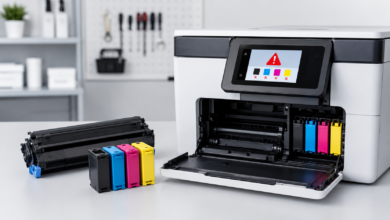
Ink system errors are among the most alarming because they often trigger a full printer halt. On EcoTank models, these typically appear as an “Ink System Failure” message in the Epson Status Monitor. The root cause is usually one of three things: a severely clogged printhead, an air bubble introduced during an ink refill, or a failed ink pump motor. I encountered this personally after refilling my ET-2720’s cyan tank too quickly — the air bubble caused an immediate ink system warning.
The standard first response is to run the Head Cleaning utility from the printer’s maintenance menu two to three times, followed by a Nozzle Check print. If the nozzle check pattern shows missing lines after three cleaning cycles, a manual printhead soak (removing the printhead and soaking it in warm distilled water for 30–60 minutes) is often effective. The advantage of this approach is that it costs nothing; the disadvantage is that it takes time and carries a small risk of damaging the printhead if done incorrectly. Ink system errors that persist after manual cleaning typically require a service center visit.
2. Waste Ink Pad Errors — The Countdown You Cannot Ignore
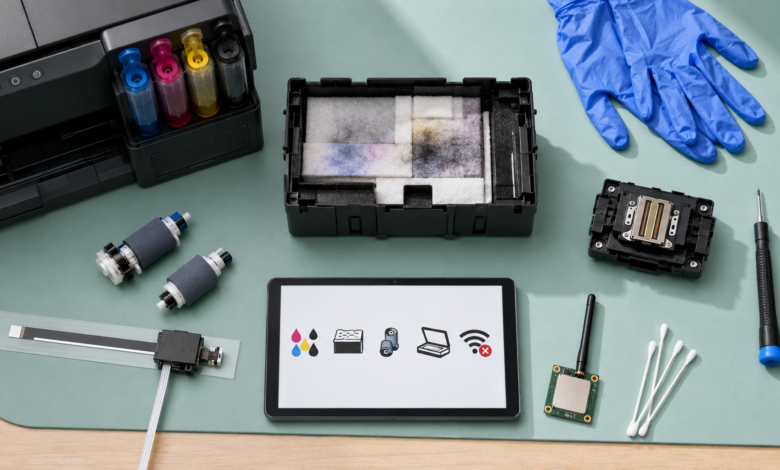
Every Epson inkjet printer contains an absorbent pad that collects waste ink from cleaning cycles. This pad has a finite capacity, and Epson programs the printer to stop functioning once an internal counter reaches a set threshold — regardless of whether the pad is physically full. The error typically appears as “Parts inside your printer are at the end of their service life” or a specific blink code (on many models, one orange blink followed by a pause).
The counter can be reset using Epson’s official Adjustment Program, which is model-specific and available through authorized Epson service partners. Third-party tools like the WIC Reset Utility are widely used in the community and generally considered reliable, though they are not officially endorsed by Epson. Resetting the counter without inspecting the physical pad is a calculated risk — if the pad is genuinely saturated, ink can leak onto the printer’s internal components. I reset my counter after confirming the pad was only about 60% saturated visually, which bought me another year of use. ⚠️ Dikkat edilmesi gereken nokta: Never reset the waste ink counter more than once without physically inspecting or replacing the pad. Overflow can cause permanent damage to the printer’s circuit board and void any remaining warranty.
3. Paper Feed Errors — Jams, Phantom Jams, and Roller Wear
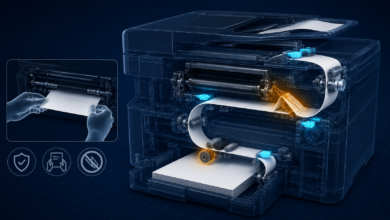
Paper feed errors divide into two types: real jams (paper is physically stuck) and phantom jams (the sensor reports a jam when no paper is present). Real jams are straightforward — open the rear access panel, remove the paper gently without tearing it, and clear any small fragments. Phantom jams are more frustrating and are typically caused by worn or dirty paper feed rollers. On my ET-2720, I started getting phantom jam errors after about 800 print cycles, which is within the normal wear range for home-use rollers.
Cleaning the rollers with a lint-free cloth lightly dampened with distilled water resolves the issue in most cases. Avoid using alcohol-based cleaners, as these can dry out the rubber and accelerate wear. If the rollers are visibly glazed or cracked, replacement roller kits are available for most Epson models for approximately $15–$30 USD. The advantage of roller maintenance is that it extends printer life significantly; the disadvantage is that it requires partial disassembly on some models.
4. Scanner Errors — Detection Failures and Communication Drops
Scanner errors on Epson all-in-one models typically fall into two categories: the scanner is not detected at all, or it is detected but produces communication errors mid-scan. The first scenario is almost always a driver or USB issue. When I upgraded my laptop to Windows 11, my Epson Scan 2 software stopped recognizing the scanner entirely — reinstalling the driver from Epson’s support site fixed it within ten minutes.
Communication errors during scanning are more nuanced. They can indicate a USB cable fault (try a different cable), a conflict with security software blocking the Epson scan process, or a hardware issue with the scanner’s CCD sensor. On network-connected models, scanner detection over Wi-Fi can fail if the printer’s IP address has changed — assigning a static IP to the printer in your router’s DHCP settings prevents this reliably. Epson scanner errors related to the CCD sensor (visible as horizontal lines or blank scans) generally require professional service.
5. Wi-Fi and Network Connection Errors — The Most Frequently Misdiagnosed Category
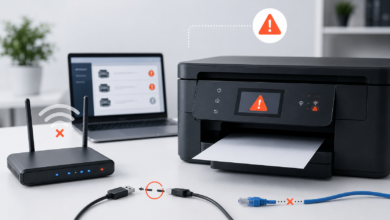
Wi-Fi errors are the category I see most often misdiagnosed as hardware failures. The Epson Status Monitor may display “Printer Offline” or a network error code, leading users to assume the printer is broken. In the vast majority of cases, the issue is a network configuration problem: the printer has been assigned a new IP address by the router’s DHCP server, the Wi-Fi password has changed, or the printer has dropped off the 2.4 GHz band after a router firmware update.
The fastest diagnostic step is to print a Network Status Sheet directly from the printer’s control panel (Settings → Network Settings → Print Status Sheet). This sheet shows the printer’s current IP address, signal strength, and connection status. If the IP address does not match what your computer expects, updating the port in Windows’ printer settings or re-running the Wi-Fi setup wizard resolves the issue. ⚠️ Epson printers generally do not support 5 GHz Wi-Fi bands — if your router has recently been reconfigured to broadcast only on 5 GHz, the printer will not connect regardless of the password.
Step-by-Step: How I Diagnosed and Fixed My Epson Error (And How You Can Too)
Step 1: Identify the Exact Error Code or Blink Pattern
The first thing I did was resist the urge to press buttons randomly. Instead, I counted the orange LED blink pattern carefully — my printer blinked once, paused, then blinked once again, which corresponds to a waste ink pad warning on the ET-2720. If your printer displays a numeric code on screen, note it exactly. Epson’s support site has a model-specific error code lookup tool at epson.com/support that maps codes to specific fault categories. This step alone saved me from misdiagnosing the problem as an ink system failure.
Step 2: Run the Built-In Diagnostic First
Before touching any settings or downloading any tools, I ran the printer’s built-in self-test by holding the power button while pressing the paper feed button (the exact combination varies by model — check your manual). The self-test print confirmed that the printhead nozzles were functioning correctly, which ruled out an ink system fault. This surprised me — I had assumed the blinking meant the ink was the problem. Running diagnostics before assuming the worst is a habit worth building.
Step 3: Check Epson’s Official Support Documentation for Your Model
I navigated to epson.com/support, entered my model number (ET-2720), and found the exact error description within two minutes. Epson’s documentation is more detailed than most third-party guides and includes model-specific blink code tables. I also found a firmware update for my model that addressed a known waste ink counter reporting bug — installing it did not fix my issue but is generally recommended as a first step before attempting any reset.
Step 4: Apply the Appropriate Fix for Your Error Category
For my waste ink pad error, I downloaded the WIC Reset Utility, purchased a one-time reset key for $9.99 USD, and ran the reset process. The utility walked me through the steps clearly: connect the printer via USB, open the utility, select the model, enter the key, and confirm the reset. The entire process took under five minutes. Before running the reset, I had opened the printer’s bottom panel to visually inspect the pad — it was damp but not overflowing, so I was comfortable proceeding. “If I’d known then” that this was a software counter rather than a physical failure, I would have been far less anxious about the whole situation.
Step 5: Verify the Fix and Document What You Did
After the reset, I printed a nozzle check page and a full-color test print to confirm normal operation. Both came out cleanly. I then took a photo of the waste ink pad’s condition and noted the date and counter reset in a simple text file I keep with my printer’s documentation. Six months later, the printer is still running without issues. Documenting the fix matters — if the error recurs sooner than expected, that record helps determine whether the pad needs physical replacement rather than another counter reset.
Frequently Asked Questions — Epson Printer Error Codes
What does the Epson ‘Ink System Failure’ error mean?
The Ink System Failure error typically indicates a problem with the ink delivery mechanism — this may include a clogged printhead, an air bubble in the ink lines, or a failed ink pump. In most cases, running the built-in head cleaning utility two or three times resolves the issue. If the error persists after multiple cleaning cycles, a manual printhead soak or a service center evaluation is generally the next recommended step.
How do I fix the Epson waste ink pad full error?
When the waste ink pad reaches its absorption limit, Epson printers display a warning and eventually stop printing entirely. You can reset the internal counter using Epson’s official Adjustment Program or a reputable third-party utility such as WIC Reset. It is important to understand that resetting the counter does not physically replace the pad — if the pad is genuinely saturated, it should be inspected and replaced or cleaned to prevent ink from leaking onto internal components.
Why does my Epson printer keep showing a paper jam error even with no paper stuck?
A phantom paper jam error often points to a dirty or worn paper feed roller rather than an actual obstruction. Dust and paper residue accumulate on the rollers over time and can cause the paper path sensor to misread the feed status. Cleaning the rollers with a lint-free cloth dampened with distilled water, and ensuring the paper tray is loaded within the recommended capacity, typically resolves this in most cases. If the rollers are visibly worn, replacement kits are available for most Epson models.
What should I do when my Epson scanner is not detected?
Scanner detection failures are most commonly caused by outdated or corrupted Epson Scan 2 drivers, a faulty USB connection, or a software conflict introduced by an OS update. Reinstalling the latest Epson Scan 2 driver from the official Epson support site and testing with a different USB cable and port resolves the issue in the majority of cases. On Windows 11 systems, running the Epson Scan 2 application as administrator may also be necessary after a fresh driver installation.
How much does it cost to repair an Epson printer with a waste ink pad error?
Repair costs vary considerably depending on the approach. A DIY counter reset using a utility key typically costs between $10–$20 USD. Professional service center repairs, which include physical pad inspection and replacement, generally range from $50–$150 USD depending on the printer model and your location. For older or lower-cost models, it is worth comparing the repair cost against the price of a current replacement unit before committing to a service center visit.
Conclusion & My Take
After going through this process myself, my overall assessment is that Epson printer error codes are genuinely useful diagnostic signals — not arbitrary obstacles. The system is logical: each error category has a defined cause and a defined set of responses. If you have an ink system error, start with head cleaning before assuming hardware failure. If you have a waste ink pad error, reset the counter only after visually confirming the pad’s condition. If you have a Wi-Fi error, print a Network Status Sheet before touching any settings.
The pattern I have observed is that most home users escalate to service centers or replacement purchases prematurely, often because the error message language is alarming (“parts inside your printer are at the end of their service life” sounds catastrophic but is usually a software counter). In most cases, a methodical approach — identify the category, consult the official documentation, apply the targeted fix — resolves the issue in under an hour without any cost beyond a reset key.
If you have a persistent error that does not fit neatly into one of these five categories, or if the same error recurs within a few weeks of a fix, that is generally the signal that a hardware component needs physical replacement rather than a software reset. Have you run into an Epson error code that stumped you? Share it in the comments — I would be glad to help work through it.
Sources
- Epson America — Official Printer Support & Error Code Documentation — epson.com/support
- Epson Europe — EcoTank & WorkForce Series Service Manuals — epson.eu/support
- WIC Reset Utility — Waste Ink Counter Reset Tool Documentation — wic.support
- iFixit — Epson Printer Repair Guides (Community-Reviewed) — ifixit.com
- Epson Developer Network — Epson Scan 2 SDK & Driver Release Notes — download.epson-europe.com