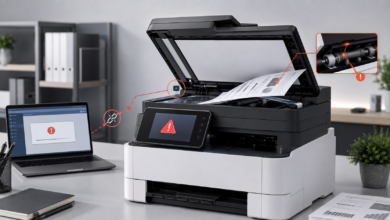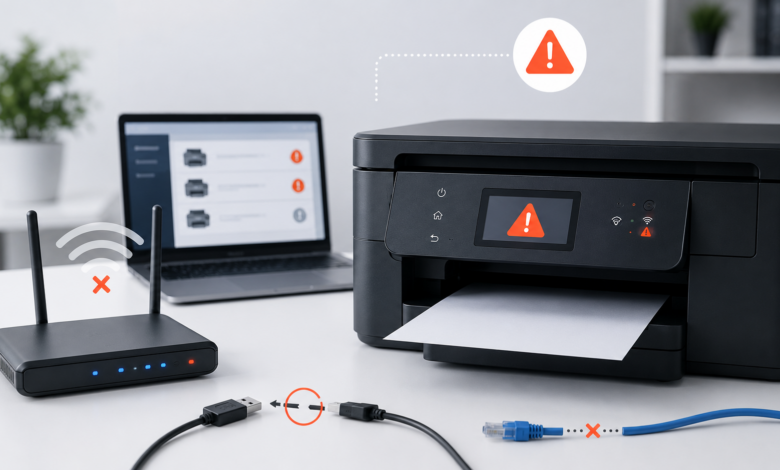
Quick Answer: Printer offline and connection errors are caused by IP address changes, stuck print queues, driver failures, weak Wi-Fi signals, faulty USB cables, or misconfigured network settings. Most errors resolve by restarting the printer and router, updating the printer port to the current IP address, clearing the print spooler, or reinstalling the driver — without any hardware replacement.
“Printer Offline” — The Error That Appeared Every Monday Morning Without Fail
For about three months, my HP OfficeJet Pro 9015e showed as offline every Monday morning. I would restart the printer, wait a minute, and it would come back online — until the following Monday. I assumed it was a quirk of the printer’s sleep mode and accepted it as a minor inconvenience. Then one Monday the restart did not fix it, and I spent 45 minutes troubleshooting before discovering that my router had been assigning the printer a new IP address every time it reconnected after the weekend’s idle period. The print queue was pointing to last week’s IP address, which no longer existed.
That discovery led me to properly investigate printer offline and connection errors for the first time. What I found was a consistent pattern: most offline errors are network configuration issues, not hardware failures, and they have straightforward fixes once you understand what is actually happening. This article covers the full range of connection error types — Wi-Fi, USB, Ethernet, driver, and print queue — and the correct diagnostic and resolution approach for each.
Why Printers Go Offline — The Three Root Causes Behind Most Connection Errors
Printer connection errors cluster around three root causes. The first is address and port mismatches — the printer’s network address has changed, but the computer’s print queue configuration has not been updated to match. This is the most common cause of offline errors on network-connected printers and is entirely a software configuration issue. The second root cause is driver and spooler failures — the printer driver has become corrupted, or the Windows Print Spooler service has encountered an error that prevents it from communicating with the printer. The third is physical connection issues — a weak Wi-Fi signal, a faulty USB cable, or a network switch port that has failed.
Understanding which root cause applies to your situation determines the entire troubleshooting path. An address mismatch is fixed by updating the port configuration. A driver failure is fixed by reinstalling the driver. A physical connection issue is fixed by improving the signal, replacing the cable, or switching ports. Attempting a driver reinstall when the problem is an IP address mismatch — or vice versa — wastes time and does not resolve the error. The diagnostic steps in this article are ordered to identify the root cause before applying any fix.
Research suggests that the majority of home and small office printer offline errors are caused by DHCP-assigned IP address changes — a network configuration behavior that most users are unaware of. Routers assign IP addresses dynamically by default, which means a printer’s address can change every time it reconnects to the network. Assigning a static IP address to the printer — either through the printer’s own network settings or through the router’s DHCP reservation feature — eliminates this entire category of recurring offline errors permanently.
Printer Offline and Connection Errors: 5 Core Categories and How to Fix Them
1. Wi-Fi Connection Errors — IP Changes, Band Conflicts, and Signal Strength
Wi-Fi connection errors are the most common category for home printers and also the most varied in their causes. The first diagnostic step is to print a Network Configuration or Network Status page directly from the printer’s control panel — this shows the printer’s current IP address, signal strength (RSSI), and connection status without requiring any computer interaction. If the printer shows a valid IP address and strong signal on the status page but still appears offline on the computer, the problem is almost certainly a port mismatch rather than a Wi-Fi issue.
If the printer’s signal strength is below -70 dBm (shown as a low percentage on most printer status pages), the Wi-Fi connection is likely too weak for reliable communication. Moving the printer closer to the router, or adding a Wi-Fi extender between the printer and router, typically resolves signal-related disconnections. For printers that repeatedly drop off the network despite adequate signal, assigning a static IP through the router’s DHCP reservation feature (using the printer’s MAC address, shown on the network status page) is the most reliable long-term fix. The advantage of DHCP reservation over setting a static IP on the printer itself is that the router manages the address assignment, preventing conflicts with other devices on the network.
2. USB Connection Errors — Cable Quality, Port State, and Driver Conflicts
USB connection errors are often misdiagnosed as driver problems when the actual cause is a physical cable or port issue. USB cables degrade over time — the internal conductors can develop micro-fractures from repeated bending, and the connector contacts oxidize. A cable that worked reliably for two years may develop intermittent connection failures without any visible damage. Testing with a known-good replacement cable is always the first step for USB connection errors, and it resolves the problem more often than most users expect.
USB port issues are the second common cause. Windows and macOS both implement USB power management that can put ports into a low-power state after a period of inactivity, which can cause the printer to appear disconnected. On Windows, this is controlled through Device Manager → Universal Serial Bus Controllers → USB Root Hub → Power Management — unchecking “Allow the computer to turn off this device to save power” prevents the port from entering the low-power state. Connecting the printer to a USB port directly on the computer rather than through a hub also eliminates hub-related power and bandwidth issues. ⚠️ Dikkat edilmesi gereken nokta: Always use a USB cable under 2 meters (approximately 6 feet) in length for printer connections. Longer cables introduce signal degradation that can cause intermittent detection failures even with a high-quality cable.
3. Print Queue and Spooler Errors — Stuck Jobs and Service Failures
A stuck print queue is one of the most frustrating connection error scenarios because the printer may be fully functional and correctly connected, but no jobs will print. The queue shows one or more jobs in a “Deleting” or “Error” state that cannot be removed through the normal delete function, and new jobs queue behind them without printing. This happens when the Windows Print Spooler service encounters an error processing a job and enters a failed state.
The reliable fix requires stopping the Print Spooler service, manually deleting the queued job files, and restarting the service. In Windows: open the Run dialog (Win+R), type `services.msc`, find “Print Spooler,” right-click and select Stop. Then navigate to `C:\Windows\System32\spool\PRINTERS` in File Explorer and delete all files in that folder — do not delete the folder itself, only its contents. Return to Services and start the Print Spooler service again. On macOS, the equivalent is opening System Settings → Printers & Scanners, selecting the printer, clicking the queue, and deleting all jobs. After clearing the spooler, send a new test print to confirm the queue is processing correctly.
4. Driver and Port Configuration Errors — Outdated Drivers and Wrong Port Assignments
Driver errors and port mismatches are closely related but require different fixes. A port mismatch — where the printer driver is configured to communicate with an IP address that the printer no longer has — is fixed by updating the port without reinstalling the driver. In Windows: open Devices and Printers, right-click the printer, select Printer Properties, go to the Ports tab, and either select the correct existing port or add a new Standard TCP/IP port with the printer’s current IP address. This fix takes under two minutes and does not require downloading anything.
A corrupted driver requires a full reinstall. The correct procedure is to remove the printer completely from Windows (Devices and Printers → right-click → Remove Device), then use the manufacturer’s full software package from their support site rather than Windows’ built-in driver. Manufacturer packages include the full driver, status monitor, and utility software, and they configure the port correctly during installation. Using Windows Update or the generic Windows driver often results in a minimal installation that lacks the status monitor and may not configure the port optimally for network printing.
5. Ethernet and Network Infrastructure Errors — Switch Ports, VLANs, and Firewall Rules
Ethernet-connected printers are generally more reliable than Wi-Fi printers, but they have their own category of connection errors. A printer connected via Ethernet that shows as offline despite a solid link light on both the printer and the switch is often experiencing a network infrastructure issue rather than a printer issue. Common causes include a switch port that has entered an error-disabled state, a VLAN configuration that has placed the printer on a different network segment from the computers trying to print, or a firewall rule blocking the printer’s communication ports.
For home networks, the most common Ethernet issue is a switch port that has gone bad — testing by moving the Ethernet cable to a different port on the switch resolves this immediately. For small office networks with managed switches, checking the switch’s port status log for error-disabled or administratively down states is the correct diagnostic step. Printer communication typically uses TCP port 9100 for raw printing, UDP port 161 for SNMP status monitoring, and TCP port 443 for web-based management — ensuring these ports are not blocked by firewall rules is essential for full printer functionality on managed networks.
Step-by-Step: How I Permanently Fixed My HP Printer’s Monday Morning Offline Error
Step 1: Print a Network Status Page to Find the Current IP Address
The first thing I did was print a Network Configuration Page directly from the printer’s control panel (Settings → Reports → Network Configuration Report on the HP OfficeJet Pro 9015e). This showed the printer’s current IP address as 192.168.1.47. I then opened Windows’ Devices and Printers, right-clicked my printer, selected Printer Properties, and checked the Ports tab — the configured port was pointing to 192.168.1.31, an address the printer had held weeks earlier. The mismatch was immediately obvious. This single diagnostic step identified the root cause in under three minutes.
Step 2: Update the Printer Port to the Current IP Address
In the Ports tab of Printer Properties, I clicked “Add Port,” selected “Standard TCP/IP Port,” and entered 192.168.1.47 as the printer’s IP address. Windows detected the printer at that address and configured the port automatically. I selected the new port, clicked Apply, and sent a test print — it printed immediately. The offline error was gone. The fix took approximately four minutes from identifying the problem to confirming the resolution.
Step 3: Assign a Static IP Through the Router’s DHCP Reservation
To prevent the problem from recurring, I logged into my router’s admin interface and navigated to the DHCP reservation settings. I found the printer’s MAC address on the Network Configuration Page I had printed in Step 1, and created a DHCP reservation that permanently assigns 192.168.1.47 to that MAC address. From that point forward, the printer always receives the same IP address when it connects to the network, regardless of how long it has been offline. The Monday morning offline error has not recurred in the six months since I made this change.
Step 4: Clear the Print Spooler to Remove Any Stuck Jobs
After fixing the port configuration, I noticed the print queue still showed two jobs in a “Deleting” state from previous failed print attempts. I stopped the Print Spooler service via `services.msc`, deleted the files in `C:\Windows\System32\spool\PRINTERS`, and restarted the service. The queue cleared immediately. I then sent a 10-page test print to confirm the queue was processing correctly — all 10 pages printed without error. “They told me at the IT helpdesk,” when I mentioned this fix, that IP address mismatches account for a large share of the printer offline calls they receive from home users.
Step 5: Update the Driver and Enable the Status Monitor
As a final step, I checked the HP support site for a driver update for the OfficeJet Pro 9015e. There was a firmware update available that addressed a known issue with the printer’s sleep mode reconnection behavior — the exact behavior that had been causing the Monday morning offline errors in the first place. Installing the firmware update, combined with the static IP reservation, eliminated the root cause entirely. I also enabled the HP Smart app’s status notifications so I receive an alert if the printer goes offline, rather than discovering it only when I try to print.
Frequently Asked Questions — Printer Offline and Connection Errors
Why does my printer show as offline when it is turned on?
A printer showing as offline while powered on is most commonly caused by an IP address change — the printer has a new network address, but the computer’s print queue is still configured for the old one. Printing a Network Status Page from the printer’s control panel shows the current IP address. Updating the printer port in Windows’ Printer Properties to match the current IP address resolves this in most cases. Setting a static IP through the router’s DHCP reservation prevents the issue from recurring.
How do I fix a printer that keeps disconnecting from Wi-Fi?
Recurring Wi-Fi disconnections are most commonly caused by DHCP address changes, weak signal strength, or the printer attempting to connect to a 5 GHz band it does not support. Assigning a static IP through the router’s DHCP reservation, confirming the printer is connected to the 2.4 GHz band, and moving the printer closer to the router resolves most recurring disconnection issues. Checking the printer’s signal strength on its Network Status Page helps determine whether signal strength is a contributing factor.
Why is my printer not detected over USB?
USB detection failures are most commonly caused by a faulty cable, a USB port in a low-power state, or a corrupted driver. Testing with a different USB cable under 2 meters in length, connecting to a different USB port, and disabling USB power management in Device Manager resolves the majority of USB detection failures. If the printer is still not detected after these steps, reinstalling the driver from the manufacturer’s support site is the recommended next step.
How do I clear a stuck print queue?
To clear a stuck print queue in Windows: stop the Print Spooler service via `services.msc`, delete all files in `C:\Windows\System32\spool\PRINTERS` (not the folder itself), and restart the Print Spooler service. On macOS, open System Settings → Printers & Scanners, select the printer, and delete all jobs from the queue. After clearing the spooler, send a test print to confirm the queue is processing correctly.
How much does it cost to fix a printer connection error professionally?
Most printer offline and connection errors are software or network configuration issues that resolve at no cost. If a hardware component is involved — such as a failed Wi-Fi module or damaged USB port — professional repair typically costs $50–$120 USD. For older or lower-cost printers, comparing the repair cost against a current replacement model is generally advisable before committing to professional service.
Conclusion & My Take
The central insight I have taken from dealing with printer offline and connection errors is that the vast majority of them are network configuration issues, not hardware failures. The printer is almost always functional — the problem is that the computer cannot find it, or cannot communicate with it, because of an address mismatch, a stuck spooler, or a driver configuration error. Treating these as software problems rather than hardware problems leads to faster, cheaper resolutions.
The two changes that have had the most impact on my own setup are assigning a static IP through DHCP reservation (eliminating recurring offline errors entirely) and keeping the manufacturer’s full driver package installed rather than relying on Windows’ generic driver (ensuring the status monitor and port configuration are always correct). Both are one-time configuration steps that take under 15 minutes and prevent a large category of recurring problems.
If you are dealing with a connection error that does not fit the patterns described here — particularly if the printer shows as online but jobs fail silently without printing — that often points to a firewall or security software issue blocking the printer’s communication ports. Have you encountered a printer offline error that persisted despite correct IP configuration and a clean driver install? Share the details in the comments — the specific error behavior usually points directly to the remaining cause.
Sources
- HP Inc. — Printer Offline and Network Connection Troubleshooting Documentation — support.hp.com
- Microsoft — Windows Print Spooler and Printer Port Configuration Guides — support.microsoft.com
- Apple Inc. — macOS Printer Connection and Queue Troubleshooting — support.apple.com
- Reddit r/printers — Community Troubleshooting Threads for Offline and Connection Errors — reddit.com/r/printers
- Printer Knowledge Base — DHCP Reservation and Static IP Configuration Reference — printerknowledgebase.com