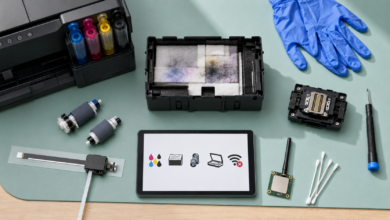
Quick answer: The most common printer error codes and fixes — paper jam (HP 13.xx, Canon 1300, Epson/Brother jam message): turn off printer, open all access doors, remove jammed paper in the direction of the paper path, check for torn fragments; cartridge error (HP ‘cartridge problem’, Canon 1686, Epson ‘not recognized’): remove cartridge, check for protective tape on new cartridges, clean copper contacts with distilled water, reseat firmly; printer offline: uncheck ‘Use Printer Offline’ in print queue, restart Print Spooler service; connection error: ensure printer and computer are on the same Wi-Fi network, reinstall printer driver; low memory / error 49/79 on laser printers: restart printer, clear print queue, update firmware.
The Printer That Showed a Jam Error With No Paper Inside It
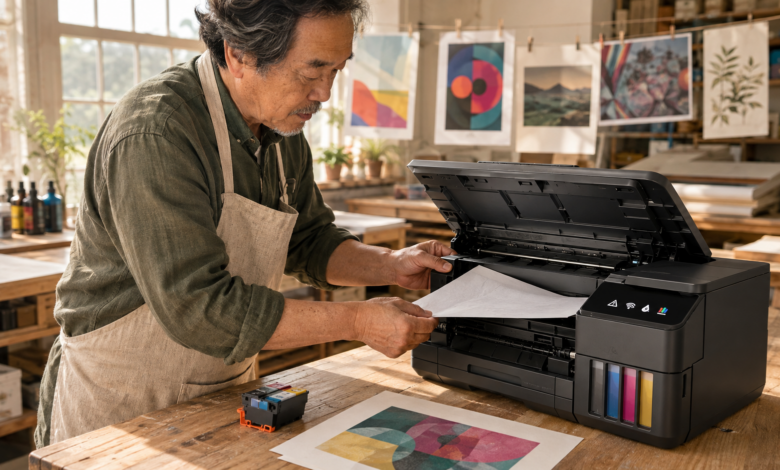
The paper jam error appeared on the HP LaserJet’s display panel. The paper tray was empty. The rear access door was clear. The front cover showed nothing. The error code — 13.20.00 — persisted through three restarts. What I did not check until the fourth attempt was the duplex unit: a small, folded corner of paper, no larger than a thumbnail, had torn off during a previous jam and lodged itself in the duplex paper path where it was invisible without a flashlight. Removing that fragment cleared the error immediately.
That experience captures the most important thing about most common printer error codes and fixes: the error code tells you the category of the problem, but the actual cause is often hidden in a location the error message does not specify. A paper jam error does not always mean there is a full sheet of paper stuck in an obvious location. A cartridge error does not always mean the cartridge is empty. A printer offline error almost never means the printer is actually off. Understanding what each error code category means — and where to look for the actual cause — is the difference between a five-minute fix and an hour of frustration.
Why Printers Generate Error Codes
Modern printers contain sensors throughout the paper path, ink delivery system, and communication stack that continuously monitor the printer’s operating state. When a sensor detects a condition outside normal parameters — a paper path obstruction, an ink level below threshold, a communication timeout, a firmware checksum mismatch — the printer halts the current job and generates an error code. The error code identifies which sensor or subsystem detected the problem, which narrows the troubleshooting to a specific component or area of the printer.
Printer error codes vary significantly by manufacturer. HP uses numeric codes (13.xx for paper jams, 49 and 79 for firmware errors, 0xc19a for ink system failures). Canon uses four-digit support codes (1300 for paper jams, 1686/1688 for ink errors, 5100 for carriage errors). Epson uses plain-language error messages with support codes in the printer’s event log. Brother uses plain-language messages (Jam Inside, Replace Toner, Unable to Print) with numeric codes in the service manual. Despite the different formats, the underlying error categories — paper path, ink/toner, communication, firmware, hardware — are the same across all brands.
Most Common Printer Error Codes and Fixes
Paper Jam Errors — HP 13.xx, Canon 1300, Epson and Brother Jam Messages
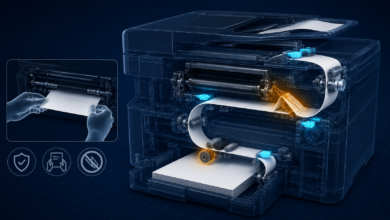
Paper jam errors are the most common printer error across all brands and printer types. HP laser printers use 13.xx codes where the digits after 13 identify the location of the jam: 13.00 (paper tray), 13.05 (fuser area), 13.20 (duplex unit), 13.21 (output area). Canon inkjet printers use support code 1300 for paper jams in the paper feed area and 1303 for jams in the rear tray. Epson and Brother printers display plain-language messages (“Paper Jam,” “Jam Inside,” “Jam Rear”) without numeric codes in most consumer models.
Fix for all paper jam errors: turn off the printer and unplug it from power before reaching inside. Open all access doors — the paper tray, the rear access panel, the front cover, and the duplex unit if present. Use a flashlight to inspect the entire paper path. Pull jammed paper gently in the direction of the paper path (the direction paper normally travels through the printer) — never pull against the paper path direction, as this tears the paper and leaves fragments. Check for torn paper fragments even after the main jam is cleared — a fragment as small as a fingernail will cause repeated jam errors. After clearing the jam, remove and reinsert the paper tray, ensure the paper guides are snug against the paper stack (not too tight, not too loose), and restart the printer.
Cartridge and Ink Errors — HP Cartridge Problem, Canon 1686/1688, Epson Ink Not Recognized
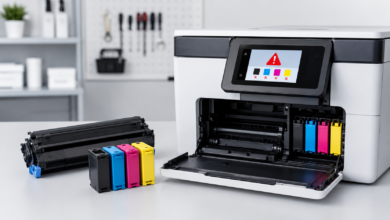
Cartridge and ink errors are the second most common printer error category. HP inkjet printers display “Cartridge Problem,” “Ink Cartridge Not Compatible,” or “Ink Cartridge Missing or Damaged” messages. Canon inkjet printers use support codes 1686 (ink may have run out — printer can continue printing but print quality may be affected) and 1688 (ink has run out — replace the cartridge). Epson printers display “Ink Cartridge Not Recognized” or “The following ink cartridge(s) are not installed properly.” Brother laser printers display “Replace Toner,” “Toner Low,” or “Toner Life End” messages.
Fix for cartridge errors: open the cartridge access door and remove the cartridge showing the error. Check that the protective orange or yellow tape has been removed from new cartridges — this tape covers the ink nozzles and electrical contacts and must be removed before installation. Clean the cartridge’s copper electrical contacts with a lint-free cloth lightly dampened with distilled water (not tap water, not alcohol — tap water leaves mineral deposits, alcohol can damage the contacts). Clean the corresponding contacts inside the printer with a dry lint-free cloth. Reseat the cartridge firmly until it clicks into place. If the error persists with a new cartridge, verify the cartridge number matches the printer model exactly — HP 63 and HP 63XL are compatible with specific printer models only. Third- party cartridges may trigger “non-genuine cartridge” warnings that can be dismissed, but counterfeit cartridges may cause persistent errors that require genuine cartridges to resolve.
Printer Offline Errors — Windows Print Spooler and Default Printer Issues
“Printer offline” is one of the most misunderstood printer errors because it almost never means the printer is actually off or disconnected. In Windows, “printer offline” is a status flag in the print spooler that can be set by a failed print job, a network timeout, or a Windows update that resets the default printer. The printer may be fully powered on and connected, but Windows reports it as offline because the spooler has flagged it.
Fix for printer offline errors: open Settings → Bluetooth & devices → Printers & scanners → select the printer → Open print queue. In the print queue window, click the Printer menu and check whether “Use Printer Offline” is checked — if it is, uncheck it. Cancel all pending print jobs in the queue. If the printer is still shown as offline, restart the Print Spooler service: press Win+R, type “services.msc,” find “Print Spooler,” right-click, and select Restart. For Wi-Fi printers, ensure the printer and the computer are on the same Wi-Fi network (not one on 2.4 GHz and the other on 5 GHz with different network names). If the problem recurs after every restart, set the correct printer as default: Settings → Bluetooth & devices → Printers & scanners → select the printer → Set as default, and disable “Let Windows manage my default printer” in the same settings panel.
Connection and Communication Errors — Wi-Fi, USB, and Driver Issues
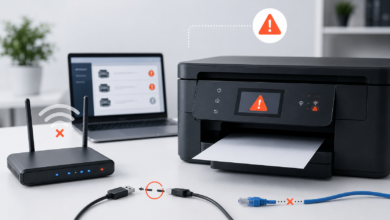
Connection errors occur when the computer cannot communicate with the printer over Wi-Fi, USB, or the network. HP printers display “Unable to Connect to Printer” or “Printer Not Found.” Canon printers display “Cannot Communicate with Printer” or “Check the connection.” Epson printers display “Printer is Offline” or “Communication Error.” Brother printers display “Unable to Print” or “Machine Error.”
Fix for Wi-Fi connection errors: restart the printer and the router. On the printer’s control panel, run the wireless setup wizard to reconnect to the Wi-Fi network (HP: Settings → Wireless Setup Wizard; Canon: Setup → Wireless LAN Setup; Epson: Settings → Wi-Fi Setup; Brother: Menu → Network → WLAN → Setup Wizard). Print a network configuration page from the printer’s control panel to confirm the printer has received an IP address. If the printer receives an IP address but the computer still cannot find it, temporarily disable the Windows Firewall to test whether the firewall is blocking the printer — if disabling the firewall resolves the issue, add the printer’s IP address to the firewall’s allowed list. Fix for USB connection errors: try a different USB cable and a different USB port on the computer. Uninstall and reinstall the printer driver using the manufacturer’s full driver package (not the Windows generic driver): HP at hp.com/go/support, Canon at usa.canon.com/support, Epson at epson.com/support, Brother at support.brother.com.
⚠️ Firmware, Fuser, and Hardware Errors — When Professional Service Is Required
Some printer error codes indicate hardware failures that cannot be resolved by the user and require professional service or printer replacement. HP laser printers display Error 49 and Error 79 for firmware errors — these can sometimes be resolved by restarting the printer and clearing the print queue, but if they recur consistently, they indicate a corrupted firmware or a failing formatter board. HP laser printers display Error 50.x for fuser errors (50.1 = fuser low temperature, 50.2 = fuser warm-up failure, 50.3 = fuser high temperature) — fuser errors almost always require fuser replacement, which is a $50–$150 part that can be replaced by an experienced user on some models but requires a technician on others. Canon laser printers display Error 6000 (paper feed motor failure) and Error 5100 (carriage position error) — these require service center repair. Epson inkjet printers display “Printer’s Ink Pads Are at the End of Their Service Life” — this error requires either a service center reset of the ink pad counter or replacement of the ink pads, which is a $30–$80 service. Brother laser printers display “Drum Error” or “Replace Drum” — the drum unit is a replaceable part ($30–$80) that can be replaced by the user. Any error code that persists after a full power cycle, driver reinstallation, and cartridge replacement, and that is accompanied by unusual sounds (grinding, clicking, or squealing) from inside the printer, indicates a mechanical failure requiring professional service.
How to Fix Printer Error Codes: Step-by-Step
Step 1: Identify the Error Code and Look It Up on the Manufacturer’s Support Site
Note the exact error code or message displayed on the printer’s control panel or in the Windows notification. Look up the exact code on the manufacturer’s support website: HP at support.hp.com, Canon at usa.canon.com/support, Epson at epson.com/support, Brother at support.brother.com. Each manufacturer maintains a searchable error code database with model-specific troubleshooting steps. The same error code number can mean different things on different printer models — always look up the code for the specific printer model, not just the brand.
Step 2: Perform a Full Power Cycle
Turn off the printer using the power button. Unplug the power cable from the back of the printer (not just from the wall outlet — unplug from the printer itself). Wait 60 seconds. Plug the power cable back into the printer. Turn the printer on. A full power cycle clears the printer’s RAM, resets the sensor states, and clears temporary firmware errors. This resolves approximately 30% of printer error codes without any further action. Do not use the printer’s sleep or standby mode as a substitute for a full power cycle — sleep mode does not clear the printer’s RAM or reset sensor states.
Step 3: Clear the Print Queue and Restart the Print Spooler
A stuck print job in the Windows print queue can cause persistent error codes even after the underlying problem is resolved. Open Settings → Bluetooth & devices → Printers & scanners → select the printer → Open print queue. Cancel all pending print jobs by right-clicking each job and selecting Cancel. If jobs cannot be cancelled through the print queue interface, restart the Print Spooler service: press Win+R → type “services.msc” → find “Print Spooler” → right-click → Stop. Then navigate to C:\Windows\System32\spool\PRINTERS and delete all files in that folder (do not delete the folder itself). Return to services.msc and Start the Print Spooler service. This clears all stuck print jobs and resets the spooler.
Step 4: Reinstall the Printer Driver
If the error persists after a power cycle and print queue clear, reinstall the printer driver. In Windows, go to Settings → Bluetooth & devices → Printers & scanners → select the printer → Remove device. Download the full driver package from the manufacturer’s support website for the specific printer model and Windows version. Run the installer and follow the setup wizard. Use the manufacturer’s full driver package rather than the Windows generic driver — the generic driver does not include the printer’s status monitoring software, which is required to display error codes and ink levels correctly. For Wi-Fi printers, the full driver package includes the wireless setup wizard that reconnects the printer to the network.
Step 5: Run the Manufacturer’s Diagnostic Tool
Each major printer manufacturer provides a free diagnostic tool that automatically identifies and resolves common error codes. HP: HP Print and Scan Doctor, available at hp.com/go/tools — automatically diagnoses and fixes connection errors, spooler errors, and driver errors. Canon: My Image Garden or IJ Network Device Setup Utility, available at usa.canon.com/support. Epson: Epson Connect Printer Setup or Epson Software Updater, available at epson.com/support. Brother: Brother iPrint&Scan or Brother Utilities, available at support.brother.com. Run the diagnostic tool before contacting manufacturer support — the tool resolves the majority of software-related error codes automatically and generates a diagnostic report that support agents use to identify hardware issues.
Frequently Asked Questions About Printer Error Codes
What are the most common printer error codes?
The most common printer error codes are paper jam errors (HP 13.xx, Canon 1300), cartridge errors (HP ‘cartridge problem’, Canon 1686/1688, Epson ‘ink not recognized’), printer offline errors (Windows print spooler issue), connection errors (Wi-Fi or USB communication failure), and firmware errors (HP Error 49/79, Canon 6000). Paper jams and cartridge errors account for the majority of printer service calls.
How do I fix a paper jam error when there is no paper stuck?
If a paper jam error persists after removing all visible paper, there is almost certainly a torn paper fragment inside the paper path. Use a flashlight to inspect the entire paper path including the duplex unit, the fuser area, and the rear access panel. Even a fragment the size of a thumbnail will trigger repeated jam errors. Remove the fragment by gently pulling it in the direction of the paper path. If no fragment is visible, the paper path sensor itself may be faulty — contact the manufacturer’s support.
Why does my printer keep going offline?
A printer that repeatedly goes offline is usually caused by Windows automatically managing the default printer (switching to a different printer after a Windows update), a Wi-Fi connection that drops and does not reconnect automatically, or a print spooler that crashes due to a corrupt print job. Fix: disable “Let Windows manage my default printer” in Settings → Bluetooth & devices → Printers & scanners, assign the printer a static IP address in the router’s DHCP settings to prevent the IP address from changing, and clear the print queue regularly.
Can I use third-party ink cartridges without getting error codes?
Third-party ink cartridges from reputable manufacturers (not counterfeit cartridges) generally work without persistent error codes, but may trigger “non-genuine cartridge” or “ink level cannot be determined” warnings that can be dismissed. HP, Canon, and Epson printers use chip-based cartridge authentication — some third-party cartridges include compatible chips that pass authentication, while others do not. Counterfeit cartridges that impersonate genuine cartridges may cause persistent errors, ink system failures, or printhead damage. If a third-party cartridge causes a persistent error that a genuine cartridge does not, the cartridge is the cause.
When should I call a printer technician instead of fixing it myself?
Call a printer technician when: the error code indicates a fuser failure (HP Error 50.x), a paper feed motor failure (Canon Error 6000), or a carriage motor failure (Canon Error 5100); the printer makes grinding, clicking, or squealing sounds during operation; the error persists after a full power cycle, driver reinstallation, and cartridge replacement; or the printer is an Epson inkjet displaying “Ink Pads at End of Service Life” and you are not comfortable replacing the ink pads yourself. For laser printers over 5 years old, compare the repair cost to the cost of a new printer — fuser replacement ($50–$150 part plus labor) may not be cost-effective for an older entry-level laser printer.
Printer Error Code Repair Costs
| Error Code / Problem | Common Cause | DIY Part Cost (USD) | Professional Repair Cost (USD) |
|---|---|---|---|
| Paper jam (HP 13.xx, Canon 1300) | Misloaded paper, paper fragment, worn pickup roller | $0 (no parts needed) — $15 (pickup roller kit) | $50–$100 (service call) |
| Cartridge error (HP, Canon 1686, Epson) | Empty, incompatible, or improperly seated cartridge | $15–$45 (genuine ink cartridge) | $0 (usually resolved by cartridge replacement) |
| Printer offline (Windows spooler) | Spooler crash, wrong default printer, Wi-Fi dropout | $0 (software fix) | $50–$75 (remote support session) |
| Fuser error (HP Error 50.x) | Fuser unit failure (laser printers only) | $40–$120 (fuser unit, DIY replacement) | $100–$200 (parts + labor) |
| Drum error (Brother “Replace Drum”) | Drum unit at end of service life | $30–$80 (drum unit, user-replaceable) | $0 (user-replaceable part) |
| Ink pad end of service life (Epson) | Ink pads saturated after ~10,000 pages | $15–$30 (ink pad kit + Epson Adjustment Program) | $50–$80 (service center reset) |
| Firmware error (HP Error 49/79) | Corrupt firmware or failing formatter board | $0 (firmware update) — $80–$200 (formatter board) | $100–$250 (diagnosis + formatter board replacement) |
| Carriage error (Canon Error 5100) | Carriage motor failure or obstruction | $0 (remove obstruction) — $30–$60 (carriage belt) | $80–$150 (service center repair) |
Conclusion: The Error Code Is the Starting Point, Not the Diagnosis
The paper jam error that showed no paper — resolved by a thumbnail-sized fragment in the duplex unit — is a reminder that printer error codes identify the category of the problem, not the exact cause. A 13.20.00 code means “jam in the duplex unit area,” not “there is a full sheet of paper stuck in the duplex unit.” A “cartridge problem” message means “the cartridge subsystem has detected an anomaly,” not “the cartridge is empty.” A “printer offline” status means “the print spooler cannot communicate with the printer,” not “the printer is turned off.”
The most effective approach to most common printer error codes and fixes is to use the error code to identify the subsystem (paper path, ink/toner, communication, firmware, hardware), then systematically check each possible cause within that subsystem starting with the simplest — a full power cycle, a print queue clear, a cartridge reseat — before moving to more complex fixes like driver reinstallation or hardware replacement. The manufacturer’s diagnostic tool (HP Print and Scan Doctor, Canon IJ Network Device Setup Utility, Epson Software Updater, Brother Utilities) automates this process and resolves the majority of software-related errors without manual intervention.
For hardware errors — fuser failures, carriage motor failures, ink pad saturation — compare the repair cost to the cost of a new printer before committing to a repair. Entry-level inkjet printers ($50–$100) are often less expensive to replace than to repair. Mid-range laser printers ($150–$400) are generally worth repairing for fuser and drum replacements. High-volume office laser printers ($400+) are almost always worth professional service for any hardware error.
Sources
- HP Support — Printer Error Codes and Troubleshooting for HP LaserJet and HP DeskJet. Available at: support.hp.com
- Canon USA Support — Support Code List for Canon PIXMA and imageCLASS Printers. Available at: usa.canon.com/support
- Epson Support — Error Messages and Status Lights for Epson Inkjet Printers. Available at: epson.com/support
- Brother Support — Error Messages and Troubleshooting for Brother Laser and Inkjet Printers. Available at: support.brother.com
- Microsoft Support — Fix Printer Connection and Printing Problems in Windows. Available at: support.microsoft.com