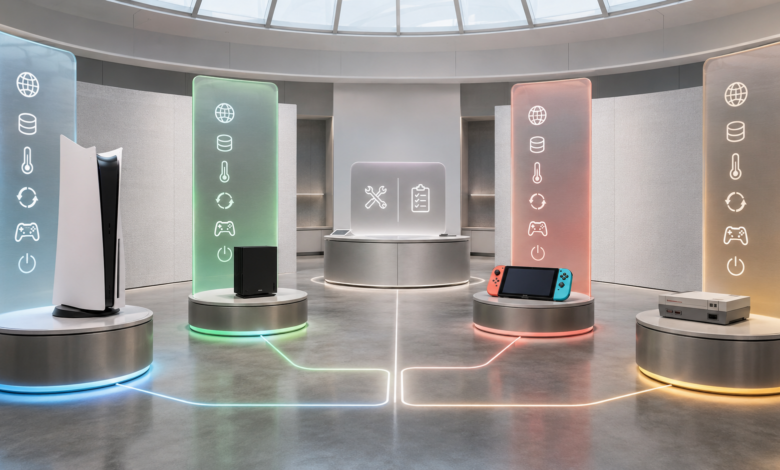
Quick answer: Gaming console error codes by brand — PlayStation uses prefix codes (NW- network, CE- application, WS- account, SU- update); Xbox uses hexadecimal codes (0x87DD- Xbox Live, 0x8007- file system, 0x803F- licensing, E100 update); Nintendo Switch uses four-digit category codes (2618- Nintendo Network, 2813- Nintendo Account, 2101- internet); Steam Deck uses Steam error codes (error 118, disk write error) plus SteamOS Linux errors. The error code format identifies which brand’s support documentation to consult and which system generated the error.
The Error Code That Looked Different on Every Console — But Had the Same Fix
In the same week, three different consoles in the same household showed three different error codes for the same underlying problem: the router had been moved to a new location and the Wi-Fi signal was weaker. The PlayStation showed NW-31194-8. The Xbox showed 0x87DD0006. The Nintendo Switch showed 2618-0516. Three different formats, three different support pages, three different troubleshooting paths — all pointing to the same fix: the router needed to be moved back to its original position, or the consoles needed to be connected via Ethernet. Moving the router resolved all three error codes simultaneously.
That experience captures the most important thing about gaming console error codes by brand: the same underlying problem — a network issue, a storage error, an account authentication failure — generates completely different error codes on different consoles. The error code format tells you which brand’s support documentation to consult, but the underlying cause and fix are often identical across brands. Understanding the error code structure for each brand allows you to quickly identify the category of the problem and apply the correct fix, regardless of which console is showing the error.
How Each Console Brand Structures Its Error Codes
Each gaming console manufacturer uses a distinct error code format that reflects the underlying architecture of the console’s operating system. PlayStation consoles (PS4, PS5) run a custom BSD-based operating system and use alphanumeric prefix codes that identify the subsystem: NW- for network, CE- for console/application, WS- for web services, SU- for system update. Xbox consoles (Xbox One, Series X/S) run a modified version of Windows and use hexadecimal error codes inherited from the Windows error code system: 0x87DD- for Xbox Live service errors, 0x8007- for Windows file system errors, 0x803F- for content licensing errors. Nintendo Switch runs a custom operating system and uses a four-digit category number followed by a four-digit specific error number. Steam Deck runs SteamOS (a Linux-based operating system) and uses Steam’s numeric error codes alongside Linux system error messages.
The error code format is the first diagnostic tool: it tells you which manufacturer’s support documentation to consult, which subsystem generated the error, and — in many cases — whether the error is caused by a network issue, a storage issue, an account issue, or a hardware issue. Learning the prefix or format for each brand’s error codes eliminates the need to look up every error code from scratch.
Gaming Console Error Codes by Brand
PlayStation Error Codes (PS4 and PS5) — Prefix-Based System
PlayStation error codes use a two-letter prefix followed by a five-digit number and a check digit (example: CE-34878-0). The prefix identifies the subsystem: NW- codes are network errors generated by the Wi-Fi and PSN connection stack. CE- codes are console or application errors generated by the operating system or the game. WS- codes are PlayStation Network web service errors generated by PSN’s account management and payment systems. SU- codes are system software update errors. E- codes are general system errors.
Most common PlayStation error codes and their fixes: NW-31194-8 (cannot connect to PSN — check status.playstation.com, restart router, fix NAT type by enabling UPnP). CE-34878-0 (game crash — close and restart game, check for update, rebuild database in Safe Mode: hold power button until two beeps → option 5). CE-36329-3 (corrupted data — verify game files or reinstall). CE-30005-8 (disc or storage error — check disc, rebuild database, or replace internal drive on PS4). WS-37368-7 (account suspended — check PSN account email). SU-30746-0 (system update failed — delete failed update, use USB update method with PS4UPDATE.PUP or PS5UPDATE.PUP). Check PSN server status at status.playstation.com before any local troubleshooting.
Xbox Error Codes (Xbox One, Series X/S) — Hexadecimal System
Xbox error codes use a hexadecimal format (0x followed by eight digits, example: 0x87DD0006) inherited from the Windows error code system. The first four digits after 0x identify the error category: 0x87DD- codes are Xbox Live service errors. 0x8007- codes are Windows file system and access errors. 0x803F- codes are content licensing errors. 0x8019- codes are network and server errors. E-series codes (E100, E101, E102, E105) appear on a black screen during system update failures and indicate update installation or hardware faults.
Most common Xbox error codes and their fixes: 0x87DD0006 (cannot sign in to Xbox Live — check status.xbox.com, hard reset by holding power button 10 seconds). 0x80070005 (access denied — hard reset, clear persistent storage: Settings → Devices → Blu-ray → Persistent Storage → Clear). 0x80073CF9 (installation failed — delete partial install, check storage space). 0x803F8001 (not licensed — check Home Xbox setting: Settings → General → Personalization → My home Xbox, verify Game Pass subscription at account.microsoft.com). E100 (system update failed — use Xbox Offline System Update via USB: hold Bind + Eject + Power until two tones). Check Xbox Live status at status.xbox.com before any local troubleshooting.
Nintendo Switch Error Codes — Four-Digit Category System
Nintendo Switch error codes use a four-digit category number followed by a hyphen and a four-digit specific error number (example: 2618-0516). The first four digits identify the error category: 2101- and 2110- codes are internet connection errors (Wi-Fi, DNS, DHCP). 2618- codes are Nintendo Network errors (cannot reach Nintendo’s online services — often NAT type). 2813- codes are Nintendo Account errors (sign-in, account linking). 2001- codes are system update errors. Game card and microSD errors appear as plain-language messages rather than numbered codes.
Most common Nintendo Switch error codes and their fixes: 2618-0516 (cannot connect to Nintendo online services — check Nintendo server status at nintendo.com/consumer/network, fix NAT type by enabling UPnP in router admin panel). 2813-1502 (Nintendo Account sign-in failure — check server status, relink Nintendo Account: System Settings → Users → profile → Nintendo Account → Sign In). 2101-0001 (internet connection error — restart router, reconnect to network, set DNS to 1.1.1.1 manually). Game card read error (clean gold contacts with isopropyl alcohol 90%+). NAT Type D or F (enable UPnP in router — Switch requires NAT Type A or B for full online functionality).
Steam Deck Error Codes — Steam Codes Plus SteamOS Linux Errors
Steam Deck runs SteamOS, a Linux-based operating system, and uses two types of error codes: Steam error codes (the same numeric codes used by Steam on PC — error 118 for connection issues, disk write error for storage issues, error 16 for corrupt downloads) and SteamOS system errors (Linux error messages that appear in the system logs or in Desktop Mode). Steam Deck also uses a compatibility rating system (Verified, Playable, Unsupported) that indicates whether a game is expected to work correctly on the Steam Deck — “Unsupported” games may display errors or fail to launch.
Most common Steam Deck errors and their fixes: Steam error 118 (cannot connect to Steam — check steamstat.us, restart Steam in Gaming Mode by pressing the Steam button → Power → Restart). Disk write error (storage issue — check microSD card health in Desktop Mode: press Steam button → Power → Switch to Desktop → open Konsole → type ‘df -h’ to check storage usage). Game compatibility error (game not launching — check the Steam Deck compatibility rating on the game’s Steam page; Proton compatibility layer issues can be resolved by changing the Proton version: Steam Library → right-click game → Properties → Compatibility → Force the use of a specific Steam Play compatibility tool). Boot failure (Steam Deck won’t boot — hold Volume Down + Power button to enter recovery mode).
Cross-Brand Comparison — Same Problem, Different Error Codes
The same underlying problem generates different error codes on different consoles. Understanding the cross-brand equivalents helps when troubleshooting a household with multiple consoles. Network connection failure: PlayStation NW-31194-8 = Xbox 0x87DD0006 = Nintendo Switch 2618-0516 = Steam Deck error 118 — all indicate the console cannot reach the platform’s online services. Fix: check server status, restart router, fix NAT type. Storage error: PlayStation CE-30005-8 = Xbox 0x80073CF9 = Nintendo Switch “not enough space” = Steam Deck disk write error — all indicate a storage write failure. Fix: check free space, run as administrator (PC/Steam Deck), check drive health. Account authentication failure: PlayStation WS-37397-9 = Xbox 0x87DD0006 = Nintendo Switch 2813-1502 — all indicate the console cannot authenticate the account. Fix: check server status, re-enter credentials, check account status.
How to Troubleshoot Gaming Console Error Codes by Brand: Step-by-Step
Step 1: Identify the Error Code Format and Consult the Correct Support Page
Identify the error code format to determine which brand’s support documentation to consult. Alphanumeric prefix (NW-, CE-, WS-, SU-) → PlayStation Support at support.playstation.com. Hexadecimal (0x87DD-, 0x8007-, 0x803F-) or E-series (E100) → Xbox Support at support.xbox.com. Four-digit category (2618-, 2813-, 2101-) → Nintendo Support at support.nintendo.com. Numeric (error 118, disk write error) or Linux error → Steam Support at help.steampowered.com or Valve’s Steam Deck support. Each manufacturer maintains a searchable error code database — look up the specific code before attempting any fix.
Step 2: Check the Platform’s Server Status
Before attempting any local fix, check the platform’s server status. PlayStation: status.playstation.com. Xbox: status.xbox.com. Nintendo: nintendo.com/consumer/network/en_US/network_status.jsp. Steam / Steam Deck: store.steampowered.com/stats or steamstat.us. If the platform’s servers are degraded or undergoing maintenance, wait for the issue to resolve — no local fix will help. Server outages cause the same error codes as local network issues, and checking server status first saves time spent troubleshooting a problem that is not local.
Step 3: Perform a Hard Reset or Full Restart
After confirming servers are operational, perform a full restart of the console. PlayStation: hold the power button until the console beeps twice and the light goes out completely (do not use Rest Mode). Xbox: hold the power button on the front of the console for 10 seconds until it shuts off completely (hard reset — clears the runtime cache). Nintendo Switch: hold the power button for 3 seconds → Power Options → Restart. Steam Deck: press the Steam button → Power → Restart. A full restart resolves the majority of temporary error codes caused by stale authentication tokens, memory leaks, and corrupted runtime state.
Step 4: Fix the Network Configuration (for Network Error Codes)
For network error codes (NW- on PlayStation, 0x87DD- on Xbox, 2618- on Nintendo Switch, error 118 on Steam Deck): restart the router and modem (unplug both for 60 seconds, plug the modem in first, wait 30 seconds, then the router). Check NAT type on the console — PlayStation: Settings → Network → View Connection Status; Xbox: Settings → General → Network Settings → Current Network Status; Nintendo Switch: System Settings → Internet → Test Connection. If NAT type is Strict (Type 3, Strict, Type D/F), enable UPnP in the router admin panel (192.168.1.1 or 192.168.0.1). Use a wired Ethernet connection for the most reliable platform connectivity.
Step 5: Address Storage, Account, and Hardware Errors
For storage error codes (CE-30005-8, 0x80073CF9, disk write error): check available storage, delete unused games, and check drive health. For account error codes (WS-37368-7, 0x803F8001, 2813-1502): verify account status on the platform’s website, check subscription status, and re-link the account on the console. For hardware error codes (CE-34878-0 across multiple games, E100 after USB update): contact the manufacturer’s support — PlayStation Support at support.playstation.com, Xbox Support at support.xbox.com, Nintendo Support at support.nintendo.com, Valve Support at help.steampowered.com. Check warranty status before paying for out-of-warranty repair.
Frequently Asked Questions About Gaming Console Error Codes by Brand
How do gaming console error codes differ by brand?
PlayStation uses alphanumeric prefix codes (NW-, CE-, WS-, SU-). Xbox uses hexadecimal codes (0x87DD-, 0x8007-, 0x803F-) and E-series update codes. Nintendo Switch uses four-digit category codes (2618-, 2813-, 2101-). Steam Deck uses Steam numeric error codes (error 118, disk write error) and SteamOS Linux errors. The format identifies which manufacturer’s support documentation to consult.
What are the most common PlayStation error codes?
CE-34878-0 (game crash — rebuild database in Safe Mode), NW-31194-8 (cannot connect to PSN — check status.playstation.com, fix NAT type), CE-36329-3 (corrupted data — verify or reinstall game), WS-37368-7 (account suspended — check PSN account email), SU-30746-0 (system update failed — use USB update method).
What are the most common Xbox error codes?
0x87DD0006 (cannot sign in to Xbox Live — check status.xbox.com, hard reset), 0x80073CF9 (installation failed — delete partial install, check storage), 0x803F8001 (not licensed — check Home Xbox setting and Game Pass subscription), E100 (system update failed — use Xbox Offline System Update via USB).
What are the most common Nintendo Switch error codes?
2618-0516 (cannot connect to Nintendo online — check server status, enable UPnP for NAT type), 2813-1502 (Nintendo Account sign-in failure — check server status, relink account), 2101-0001 (internet connection error — restart router, set DNS to 1.1.1.1), game card read error (clean contacts with isopropyl alcohol).
How do I fix Steam Deck errors?
For Steam error 118: check steamstat.us, restart Steam in Gaming Mode (Steam button → Power → Restart). For disk write error: check microSD card health in Desktop Mode. For game compatibility errors: check the Steam Deck compatibility rating and try a different Proton version (game Properties → Compatibility). For boot failure: hold Volume Down + Power to enter recovery mode.
Gaming Console Error Code Comparison by Brand
The table below compares equivalent error codes across PlayStation, Xbox, Nintendo Switch, and Steam Deck for the same underlying problems, along with the recommended first fix for each.
| Problem | PlayStation Code | Xbox Code | Nintendo Switch Code | Steam Deck Error |
|---|---|---|---|---|
| Cannot connect to online service | NW-31194-8 | 0x87DD0006 | 2618-0516 | Error 118 |
| Game crash / application error | CE-34878-0 | 0x80070005 | N/A (plain message) | Game-specific crash |
| Storage / installation error | CE-30005-8 | 0x80073CF9 | “Not enough space” | Disk write error |
| Account sign-in failure | WS-37397-9 | 0x87DD0006 | 2813-1502 | Steam login error |
| Content not licensed | WS-36812-0 | 0x803F8001 | N/A | N/A |
| System update failed | SU-30746-0 | E100 | 2001- series | SteamOS update error |
| Corrupted game data | CE-36329-3 | 0x80073CF6 | “Corrupted data” | Error 16 |
| DNS / network timeout | NW-31246-6 | 0x80072EE7 | 2110-3127 | Error 138 |
Note: Error code equivalencies are approximate — the same underlying problem may generate different specific codes depending on the console firmware version, the game, and the specific network or hardware condition. Always look up the exact error code on the manufacturer’s official support website for the most accurate troubleshooting guidance. Status pages: PlayStation at status.playstation.com, Xbox at status.xbox.com, Nintendo at nintendo.com/consumer/network, Steam at store.steampowered.com/stats.
Conclusion: The Error Code Format Is the First Diagnostic Tool
The three consoles that showed three different error codes for the same weak Wi-Fi signal — NW-31194-8, 0x87DD0006, and 2618-0516 — all had the same fix: move the router or use Ethernet. The error code format told me which support page to consult for each console, but the underlying diagnosis was identical. That is the most important insight about gaming console error codes by brand: the format varies by manufacturer, but the underlying problems — network issues, storage errors, account authentication failures, hardware faults — are the same across all platforms.
Learning the error code structure for each brand — PlayStation’s NW-/CE-/WS- prefixes, Xbox’s 0x87DD-/0x8007-/0x803F- hexadecimal categories, Nintendo Switch’s four-digit category numbers, Steam Deck’s Steam numeric codes — allows you to immediately identify the category of the problem and apply the correct fix without reading the full error description. The prefix or format is the diagnosis; the specific number is the detail.
The universal first steps for any gaming console error code, regardless of brand: check the platform’s server status page, perform a full restart (not sleep/rest mode), and check the NAT type if the error is network-related. These three steps resolve the majority of gaming console error codes across all brands before any brand-specific troubleshooting is needed.
Sources
- PlayStation Support — Error Code Reference for PS4 and PS5. Available at: playstation.com/en-us/support
- Xbox Support — Error Code Reference for Xbox One and Xbox Series X/S. Available at: support.xbox.com
- Nintendo Support — Error Code Reference for Nintendo Switch. Available at: support.nintendo.com
- Valve Steam Deck Support — Steam Deck Troubleshooting and SteamOS Documentation. Available at: help.steampowered.com/en/wizard/HelpWithSteamDeck
- PlayStation Network Service Status — Real-Time PSN Status. Available at: status.playstation.com