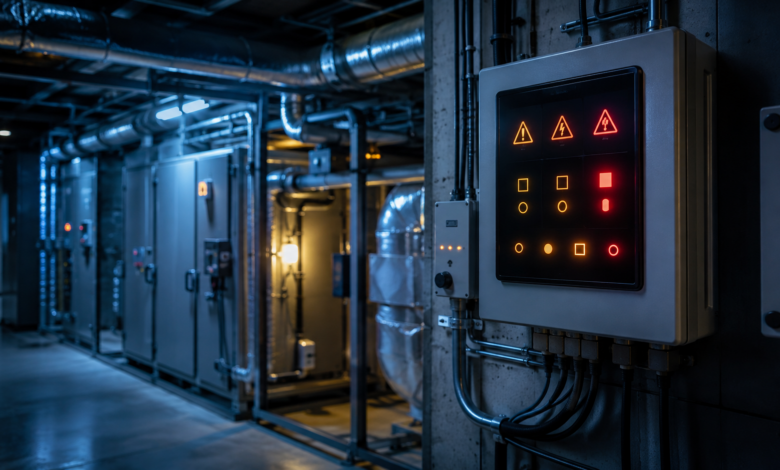
Quick answer: Your HVAC system shows error codes because its control board — a microcontroller that monitors temperature sensors, refrigerant pressure, electrical parameters, and communication signals — has detected a reading outside the acceptable operating range. Error codes fall into three categories: maintenance alerts (dirty filter, drifting sensor), component failure codes (failed thermistor, failed capacitor, failed control board), and safety shutdown codes (compressor overload, high pressure, gas valve fault). Understanding which category your code falls into determines whether you can address it yourself or need a certified HVAC technician.
The Error Code That Appeared Every August — and What It Was Actually Telling Me
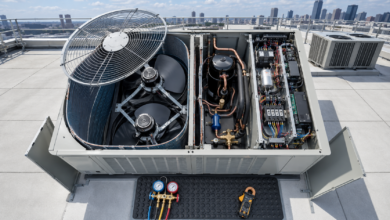
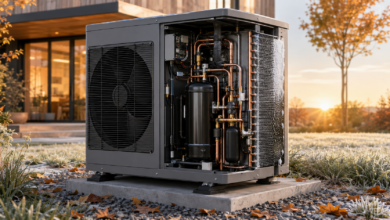
Every August, on the hottest days of the year, the central AC system would display a high pressure fault code and shut down for about 20 minutes before restarting. It happened reliably: outdoor temperature above 95°F, system running for more than two hours, then a fault code and a shutdown. I assumed the system was undersized for the heat. A technician who came out in the third year of this pattern pointed a flashlight at the condenser coil and found it coated in a thin layer of cottonwood and dust — not enough to be obvious, but enough to reduce airflow by roughly 30%. On a mild day, the system had enough margin to operate normally. On a 98°F day with reduced airflow, it did not.
That experience taught me the most important thing about why HVAC systems show error codes: an error code is not always telling you that something has broken. Sometimes it is telling you that the system’s operating margin has been reduced — by a dirty coil, a partially blocked filter, a slightly low refrigerant charge — to the point where it can no longer handle peak demand. The error code is the system protecting itself. Understanding what triggered it is the diagnosis.
How HVAC Control Boards Detect and Generate Error Codes
Every modern HVAC system — split-system air conditioner, heat pump, furnace, mini-split — contains at least one control board: a printed circuit board with a microcontroller that continuously monitors the system’s operating parameters. The control board receives inputs from sensors (thermistors, pressure switches, current sensors, flame sensors, limit switches) and compares each reading against a set of acceptable operating ranges stored in its firmware. When a reading falls outside its acceptable range — either too high, too low, or absent entirely — the control board registers a fault.
The fault is assigned an error code — a number, letter, or combination (E1, P2, H6, 31, 33) that identifies which parameter triggered the fault. The control board displays the code on the indoor unit’s LED display, the remote control screen, or — on furnaces — via a blinking LED on the control board itself. Simultaneously, the control board decides whether to continue operating in a degraded mode (for non-critical faults) or to shut the system down immediately (for safety-critical faults). The error code remains displayed until the fault condition is resolved and the system is reset.
The 5 Reasons HVAC Systems Display Error Codes
1. Maintenance Failures — Dirty Filters, Blocked Coils, Clogged Drains
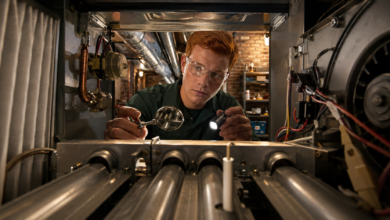
The most common reason HVAC systems display error codes is deferred maintenance. A clogged air filter restricts airflow across the evaporator coil, causing the coil to ice over and triggering an indoor coil temperature error (E2). A dirty condenser coil restricts heat rejection, causing refrigerant pressure to rise and triggering a high pressure fault (P2). A blocked condensate drain causes water to back up into the drain pan, tripping the float switch and shutting the system down with a drain overflow error. A dirty flame sensor on a furnace causes the burner to light and then immediately shut off, generating an ignition failure code.
Maintenance-triggered error codes are the most preventable category. Annual maintenance — replacing the air filter every 1–3 months, rinsing the condenser coil once per season, clearing the condensate drain, and cleaning the flame sensor — eliminates the majority of error codes that homeowners encounter. When an error code appears, check the filter and the condenser coil before assuming component failure.
2. Sensor Failures — Thermistors, Pressure Switches, and Limit Switches
HVAC systems rely on a network of sensors to monitor operating conditions. When a sensor fails, the control board receives a reading that is either absent (open circuit — the sensor wire has broken) or far outside the expected range (the sensor element has degraded). The control board cannot distinguish between a sensor failure and an actual operating condition fault — it simply sees a reading outside the acceptable range and generates the corresponding error code.
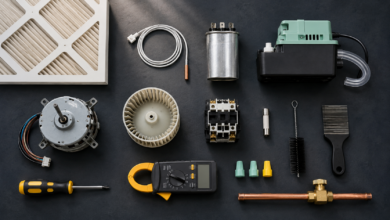
Common sensor failures: NTC thermistors (temperature sensors) fail open circuit after physical damage or UV degradation of the wire insulation; pressure switches fail to open or close at the correct pressure after diaphragm fatigue; high limit switches on furnaces fail open after repeated overtemperature events (caused by a dirty filter or blocked supply registers). Sensor failures are diagnosed by testing the sensor directly with a multimeter and comparing the reading against the manufacturer’s specification. Most sensors cost $5–$50 and are DIY-replaceable.
3. Component Failures — Capacitors, Motors, Control Boards, Igniters
Component failures generate error codes when a component that the control board monitors stops functioning correctly. A failed run capacitor causes the condenser fan motor to draw excessive current and then stop — the control board detects the motor speed feedback signal dropping to zero and generates a fan motor error. A failed igniter on a furnace causes the ignition sequence to time out without a flame signal — the control board generates an ignition failure code. A failed inverter board on a variable-speed system causes the compressor to stop — the control board generates an inverter fault code.
Component failure codes are distinguished from sensor failure codes by the fact that the component itself — not just its monitoring sensor — has stopped working. The diagnostic approach is to verify that the component is receiving correct power and control signals before concluding that the component itself has failed. A capacitor that tests failed on a multimeter is a confirmed component failure. A motor that receives correct voltage but does not run is a confirmed motor failure. A control board that receives correct inputs but generates incorrect outputs is a confirmed board failure.
4. Refrigerant System Faults — Low Charge, High Pressure, and Expansion Valve Failures
Refrigerant system faults generate error codes when the refrigerant pressure — monitored by the high pressure switch and the low pressure switch — falls outside the safe operating range. Low pressure faults (P1, LP, E9) indicate that the refrigerant charge has dropped below the minimum operating pressure, almost always due to a leak. High pressure faults (P2, HP, E8) indicate that refrigerant pressure has exceeded the maximum safe limit, caused by a blocked condenser coil, a failed condenser fan, refrigerant overcharge, or a failed expansion valve.
⚠️ Critical legal and safety note: All refrigerant system faults require a certified HVAC technician. In the United States, handling refrigerants without EPA Section 608 certification is a federal violation carrying fines up to $44,539 per day. For high pressure faults specifically, check the condenser coil for debris blockage before calling a technician — a blocked coil is a DIY-accessible fix. For low pressure faults, do not attempt to add refrigerant — the leak must be located and repaired first.
5. Safety Protection Shutdowns — Compressor Overload, Furnace Limit, Carbon Monoxide
Safety protection shutdowns are the most serious category of HVAC error codes. They indicate that a safety protection device — the compressor overload protector, the furnace high limit switch, the rollout switch, the pressure switch, or the carbon monoxide detector — has tripped to prevent equipment damage or personal injury. The system shuts down immediately and will not restart until the fault is cleared and the system is reset.
⚠️ Critical safety note: Do not attempt to bypass or override safety protection devices. The compressor overload protector trips to prevent compressor damage — repeated restart attempts after a protection fault cause permanent compressor failure. The furnace high limit switch trips to prevent heat exchanger overheating — a cracked heat exchanger allows carbon monoxide to enter the living space. The rollout switch trips when flames are rolling out of the burner compartment — a condition that poses an immediate fire risk. If a furnace safety shutdown code appears, do not restart the furnace until a certified HVAC technician has inspected the heat exchanger and burner assembly.
How to Use HVAC Error Codes to Diagnose Your System: Step-by-Step
Step 1: Record the Error Code Before Resetting
Before performing any reset, record the exact error code displayed on the indoor unit, remote control, or furnace control board LED. Take a photo. Some systems clear the error code display after a power reset, and the code is the most important piece of diagnostic information you have. Also note the conditions when the error appeared: outdoor temperature, how long the system had been running, whether it was heating or cooling mode, and whether the error appeared at startup or during operation. This context narrows the diagnosis significantly.
Step 2: Look Up the Error Code in the Service Manual
HVAC error codes are not standardized across brands — E1 means indoor temperature sensor on most mini-splits but means a different fault on some furnace brands. The definitive source for your error code’s meaning is the service manual for your specific brand and model. Service manuals are available from the manufacturer’s website, from HVAC parts suppliers, or by searching the model number with “service manual” or “error code list.” The service manual will identify the exact fault, the diagnostic procedure, and the acceptable parameter ranges for each sensor.
Step 3: Check Maintenance Items Before Assuming Component Failure
Before opening any panels or ordering parts, check the maintenance items most likely to cause the error code: inspect and replace the air filter (for any airflow-related or coil temperature error), rinse the condenser coil (for high pressure errors), clear the condensate drain (for drain overflow errors), and check that all supply and return registers are open and unobstructed (for airflow errors). These checks take 10–15 minutes and resolve a significant percentage of HVAC error codes without any parts or professional service.
Step 4: Perform a Power Reset and Observe
After addressing any maintenance items, perform a power reset: turn off the system at the thermostat, turn off the circuit breaker for both the indoor and outdoor units (or the furnace), wait 5 minutes, restore power, and wait 10 minutes before calling for heating or cooling. Observe whether the error code returns and how quickly. An error code that returns within minutes of the reset indicates an active fault that has not been resolved. An error code that does not return after the reset and maintenance may have been caused by the maintenance condition — monitor for recurrence.
Step 5: Diagnose the Indicated Component or Call a Technician
If the error code returns after the reset and maintenance check, diagnose the component indicated by the error code: test thermistors with a multimeter (sensor errors), check capacitors with a multimeter or capacitor tester (fan motor errors), check communication wire connections (communication errors), or check supply voltage at the disconnect box (inverter and electrical errors). For refrigerant system faults (P1, P2), compressor protection faults (E5, H6), and furnace safety shutdown codes, contact a certified HVAC technician. Provide the brand, model number, and exact error code.
Frequently Asked Questions About Why HVAC Systems Show Error Codes
Why does my HVAC system show error codes?
Your HVAC system shows error codes because its control board has detected a sensor reading, pressure, voltage, or communication signal outside the acceptable operating range. The error code identifies which parameter triggered the fault. Common causes: a dirty filter (airflow restriction), a failed thermistor (sensor error), a refrigerant pressure fault (leak or blocked coil), a communication wire issue (E6), or a safety protection shutdown (compressor overload, furnace limit switch).
What is the difference between a maintenance alert and a safety shutdown?
A maintenance alert indicates a condition that reduces efficiency or will cause a failure if not addressed — the system may continue operating. A safety shutdown indicates an immediate risk of equipment damage or personal safety — the system shuts down and will not restart until the fault is cleared. Safety shutdown codes (compressor overload, furnace high limit, rollout switch, carbon monoxide) always require diagnosis before restarting.
Why does my HVAC show an error code and then clear itself?
An error code that appears and clears itself indicates an intermittent fault — a condition that briefly exceeded the fault threshold and then returned to normal. Common causes: a loose sensor connector, a refrigerant pressure spike during startup, a supply voltage dip during peak demand, or a communication signal disrupted by electrical interference. Record the code each time it appears — a pattern (always at startup, always on hot days) points to the cause.
Can a dirty filter cause HVAC error codes?
Yes — a severely dirty filter restricts airflow across the evaporator coil, causing the coil to ice over and triggering an indoor coil temperature error (E2). It also increases compressor load, potentially triggering compressor overload protection. Replace or clean the air filter every 1–3 months. Always check the filter before assuming component failure when an error code appears.
Why does my HVAC show an error code only in extreme weather?
Error codes that appear only in extreme weather indicate a system operating near its design limits with reduced margin — a partially blocked condenser coil, a slightly low refrigerant charge, or a degraded component that performs adequately under normal conditions but fails under peak load. These weather-triggered codes indicate a system that needs maintenance to restore its full operating margin.
HVAC Error Code Diagnosis and Repair Costs by Category
The table below provides estimated diagnosis and repair cost ranges for the main HVAC error code categories in the United States. DIY costs reflect parts only; professional costs include a typical service call and labor.
| Error Code Category | Common Cause | DIY Part Cost (USD) | Professional Repair Cost (USD) |
|---|---|---|---|
| Maintenance alert (filter, coil, drain) | Dirty filter, blocked condenser coil, clogged drain | $0 – $20 (filter) | $80 – $200 (maintenance visit) |
| Indoor sensor error (E1, E2) | Thermistor failure or loose connector | $5 – $20 | $80 – $200 |
| Outdoor sensor error (E3, E4) | Outdoor thermistor failure or wire damage | $10 – $30 | $100 – $250 |
| Communication error (E6, U8) | Loose terminal, damaged wire, or failed control board | $5 – $50 (wire/connector) | $100 – $500 |
| Fan motor error (capacitor) | Run capacitor failure | $5 – $20 | $80 – $200 |
| Refrigerant pressure error (P1, P2) | Refrigerant leak, blocked coil, or overcharge | Not applicable | $100 – $800+ |
| Compressor protection (E5, H6) | Compressor overload, locked rotor, or discharge temp | $15 – $50 (start capacitor) | $300 – $2,000+ |
| Furnace safety shutdown (limit, rollout) | Overheating, cracked heat exchanger, or burner fault | Not applicable | $150 – $1,500+ |
Note: Costs are estimates based on typical U.S. market rates as of 2024–2025. Compressor replacement ($1,500–$2,500+ installed) and furnace heat exchanger replacement ($1,000–$2,000+) often approach the cost of a new system — always request a full replacement cost comparison before authorizing major repairs. Refrigerant handling requires EPA Section 608 certification.
Conclusion: Error Codes Are Diagnostic Tools, Not Verdicts
The high pressure fault that shut down my AC every August for three years was not telling me the system was broken. It was telling me the condenser coil needed cleaning — a 15-minute maintenance task that restored the system’s operating margin and eliminated the fault entirely. That is the most important reframe for understanding why HVAC systems show error codes: the code is a diagnostic tool, not a verdict. It identifies which parameter triggered the fault. The diagnosis is figuring out why that parameter exceeded its limit.
HVAC error codes divide into three categories with very different responses. Maintenance alert codes (dirty filter, blocked coil, clogged drain) are resolved by maintenance — no parts, no technician. Component failure codes (failed thermistor, failed capacitor, failed control board) are resolved by testing the indicated component and replacing it if failed — often DIY with $5–$50 in parts. Safety shutdown codes (compressor overload, furnace limit, refrigerant pressure) require professional diagnosis — the safety device tripped for a reason, and restarting without finding that reason risks equipment damage or personal injury.
The single most effective HVAC maintenance habit is replacing the air filter every 1–3 months and rinsing the condenser coil once per season. These two tasks maintain the system’s operating margin and prevent the majority of error codes that homeowners encounter. When an error code does appear, record it, check the filter and coil, perform a power reset, and look up the code in the service manual before assuming component failure.
Sources
- U.S. Environmental Protection Agency (EPA) — Section 608 Refrigerant Management Regulations. Available at: www.epa.gov/section608
- Air-Conditioning, Heating, and Refrigeration Institute (AHRI) — Industry Standards for Residential HVAC Systems. Available at: www.ahrinet.org
- North American Technician Excellence (NATE) — HVAC Diagnostic and Service Technician Certification Standards. Available at: www.natex.org
- U.S. Department of Energy (DOE) — Residential HVAC System Efficiency and Maintenance Guidelines. Available at: www.energy.gov
- Consumer Reports — Central Air Conditioner, Heat Pump, and Furnace Reliability and Repair Cost Survey, 2023. Available at: www.consumerreports.org