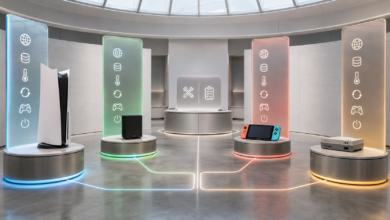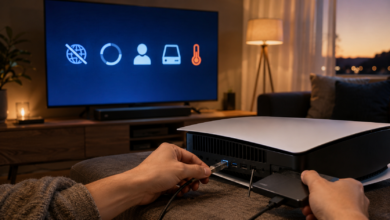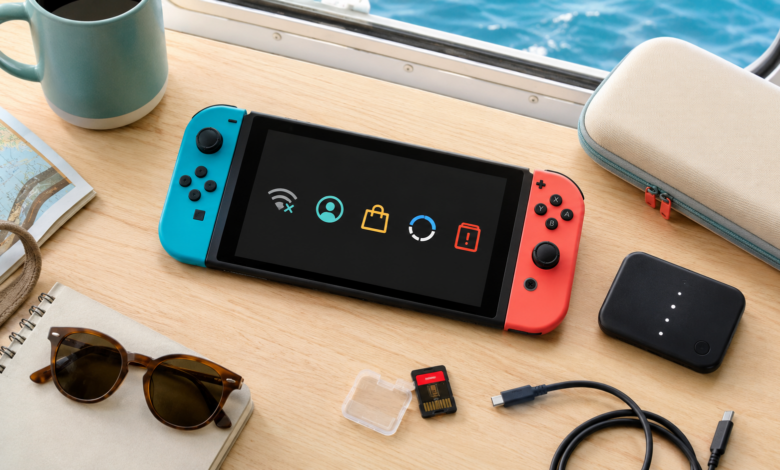
Quick answer: Nintendo Switch error codes use a category-specific format (2618-0516, 2813-1502). The first four digits identify the system: 2101-/2110- (internet connection), 2618- (Nintendo Network/online services), 2813- (Nintendo Account), 2001- (system update). Most internet errors are fixed by restarting the router, improving NAT type (enable UPnP), and moving closer to the router. Most account errors are fixed by checking Nintendo’s server status and re-linking the Nintendo Account. Game card errors are fixed by cleaning the card contacts with isopropyl alcohol.
The Error Code That Appeared Every Time I Tried to Play Online — and the Router Setting That Fixed It
For the first two weeks after buying a Nintendo Switch, I could not play any online multiplayer games. Every attempt to connect to an online match returned error 2618-0516 or a NAT Type D warning. The Switch connected to Wi-Fi without problems, downloaded games from the eShop without problems, and played local wireless with other Switch consoles without problems — but online multiplayer was completely blocked. I spent an hour on Nintendo’s support chat. The agent asked me to check the NAT type in System Settings → Internet → Test Connection. It showed NAT Type D — the most restrictive type, which blocks peer-to-peer connections required for online gaming. The fix was a single setting in the router admin panel: enable UPnP (Universal Plug and Play). After enabling UPnP and restarting the router, the NAT type changed to B, and online multiplayer worked immediately.
That experience taught me the most important thing about Nintendo Switch error codes: many of them are caused by network configuration issues — specifically NAT type — rather than problems with the Switch itself or Nintendo’s servers. The Switch is more sensitive to NAT type restrictions than PlayStation or Xbox because it relies more heavily on peer-to-peer connections for local wireless and online play. Checking the NAT type is the first diagnostic step for any Switch online error.
How Nintendo Switch Error Codes Are Structured
Nintendo Switch error codes use a consistent format: a four-digit category number, a hyphen, and a four-digit specific error number (example: 2618-0516). The first four digits identify which system generated the error. 2101- and 2110- codes are generated by the Wi-Fi and internet connection stack — they indicate that the Switch cannot connect to the local network or cannot reach the internet. 2618- codes are generated by Nintendo’s online service layer — they indicate that the Switch can reach the internet but cannot connect to Nintendo’s servers. 2813- codes are generated by the Nintendo Account authentication system — they indicate a sign-in or account linking failure. 2001- codes are generated by the system update process. 2000- codes are general system errors.
Unlike PlayStation and Xbox, the Nintendo Switch also displays plain-language error messages for some faults — game card read errors, microSD card errors, and some hardware faults appear as descriptive messages rather than numbered codes. When a numbered error code appears, it is always displayed with a support URL (support.nintendo.com) and the specific code, making it easy to look up the official fix.
The 5 Nintendo Switch Error Code Categories
1. Internet Connection Errors (2101-, 2110-) — Wi-Fi Failure and DNS Issues
Internet connection errors indicate that the Switch cannot connect to the local Wi-Fi network or cannot reach the internet through the connected network. Common codes: 2101-0001 (general internet connection error — cannot connect to the network), 2110-3127 (DNS resolution failure — cannot resolve Nintendo server addresses), 2110-2003 (Wi-Fi authentication failure — incorrect password or security protocol mismatch), 2110-1100 (IP address assignment failure — DHCP issue).
For 2101- and 2110- errors, start by restarting the Switch (hold power button 3 seconds → Power Options → Restart) and the router (unplug for 30 seconds, then plug back in). On the Switch, go to System Settings → Internet → Internet Settings, select the network, and choose Connect to This Network. If the error persists, try setting DNS manually: System Settings → Internet → Internet Settings → select network → Change Settings → DNS Settings → Manual → Primary DNS: 1.1.1.1, Secondary DNS: 1.0.0.1 (Cloudflare DNS). For 2110-2003 (authentication failure), delete the network profile and reconnect, entering the Wi-Fi password carefully — the Switch distinguishes between uppercase and lowercase characters.
2. Nintendo Network Errors (2618-) — Server Connection and NAT Type
Nintendo Network errors indicate that the Switch can reach the internet but cannot connect to Nintendo’s online services. Common codes: 2618-0516 (cannot connect to Nintendo’s online services — the most common online error), 2618-0006 (Nintendo online service temporarily unavailable), 2618-0513 (connection to the game server timed out — NAT type or server issue).
The first step for any 2618- error is checking Nintendo’s server status at nintendo.com/consumer/network/en_US/network_status.jsp. If Nintendo’s servers are operational, the issue is almost always NAT type. Check NAT type at System Settings → Internet → Test Connection. Nintendo Switch requires NAT Type A or B for full online functionality. NAT Type C allows most online play but may cause issues in some games. NAT Type D or F blocks online multiplayer entirely. To improve NAT type: enable UPnP in the router admin panel (typically at 192.168.1.1 or 192.168.0.1). If UPnP does not improve the NAT type, set up port forwarding for Nintendo Switch ports: TCP 6667, TCP 12400, TCP 28910, TCP 29900, TCP 29901, TCP 29920, UDP 1-65535.
3. Nintendo Account Errors (2813-) — Sign-In and Account Linking Failures
Nintendo Account errors indicate a failure in the Nintendo Account authentication system — the Switch cannot sign in to the Nintendo Account linked to the user profile, or cannot link a Nintendo Account to a new profile. Common codes: 2813-1502 (cannot sign in to Nintendo Account — server issue or credential error), 2813-0002 (Nintendo Account not found or not linked), 2813-6030 (Nintendo Account temporarily unavailable — server maintenance).
For 2813- errors, check Nintendo’s server status first — Nintendo Account servers undergo scheduled maintenance, and 2813- errors frequently appear during maintenance windows. If servers are operational, verify the Nintendo Account credentials at accounts.nintendo.com on a PC or phone. On the Switch, go to System Settings → Users → select the user profile → Nintendo Account → Sign In. If the account is already linked but showing a 2813- error, unlink and relink: System Settings → Users → select profile → Nintendo Account → Unlink Nintendo Account, then sign in again. Note that unlinking a Nintendo Account does not delete purchased games — they remain associated with the account and can be redownloaded after relinking.
4. eShop and Download Errors — Purchase Failures and Download Interruptions
Nintendo eShop errors occur when the Switch cannot connect to the eShop, cannot complete a purchase, or cannot download purchased content. Common eShop errors: “Could not connect to the server” (eShop server unavailable or NAT type issue), “This software cannot be purchased” (regional restriction or account age restriction), “Not enough space” (insufficient microSD card or internal storage space). Download errors: “Download failed” (network interruption or server error), “The software could not be downloaded” (license verification failure).
For eShop connection errors, check Nintendo’s server status and NAT type (same fixes as 2618- errors). For “Not enough space” errors, check available storage: System Settings → Data Management → Manage Software — the eShop shows the download size before purchase, but the installed size may be larger after decompression. Delete unused software or move software between internal storage and microSD card. For download failures, go to the Home screen → highlight the partially downloaded game icon → press A → Download Later, then re-queue the download. Ensure the Switch remains powered on and connected to Wi-Fi during large downloads — the Switch can download in Sleep Mode if System Settings → Sleep Mode → Maintain Internet Connection in Sleep Mode is enabled.
5. Game Card and microSD Card Errors — Read Failures and Corruption
Game card errors appear as plain-language messages on the Switch: “Could not read the game card. Remove it and reinsert it.” or “The game card could not be read.” These errors indicate a dirty or damaged game card connector, a damaged game card, or a faulty game card slot on the console. microSD card errors appear as: “The microSD card could not be read” or “The microSD card is not supported.”
For game card errors, remove the card and inspect the gold connector contacts on the bottom for dirt, dust, or corrosion. Clean with a dry cotton swab or a cotton swab lightly dampened with isopropyl alcohol (90%+) — wipe in one direction, allow to dry completely (at least 60 seconds) before reinserting. For microSD card errors, remove the microSD card, inspect the contacts, and reinsert firmly. If the microSD card is not recognized, try the card in a PC card reader — if the PC cannot read it, the card may be corrupted or failing. Format the microSD card using the Switch’s built-in formatter (System Settings → System → Formatting Options → Format microSD Card) — this erases all data on the card but resolves file system corruption errors.
How to Fix Nintendo Switch Error Codes: Step-by-Step
Step 1: Check Nintendo’s Server Status
Before attempting any local fix, check Nintendo’s online service status at nintendo.com/consumer/network/en_US/network_status.jsp. Nintendo performs scheduled maintenance on Nintendo Network, Nintendo Account servers, and the eShop — maintenance windows are announced in advance and typically last 2–4 hours. During maintenance, 2618- and 2813- errors appear even on consoles with perfect network configuration. If maintenance is in progress, wait for it to complete.
Step 2: Restart the Switch and the Router
Perform a full restart of the Switch: hold the power button for 3 seconds, select Power Options → Restart. Do not use Sleep Mode for troubleshooting — Sleep Mode maintains network state and does not clear the runtime errors that cause many connection codes. Also restart the router: unplug the power cable for 30 seconds, then plug back in and wait 2 minutes for the router to fully reconnect to the internet before testing the Switch. After restarting both devices, go to System Settings → Internet → Test Connection to verify the connection and check NAT type.
Step 3: Check and Improve NAT Type
Go to System Settings → Internet → Test Connection. Note the NAT type shown in the results. NAT Type A (Open) and B (Moderate) allow full Nintendo online functionality. NAT Type C allows most online play. NAT Type D and F block online multiplayer. To improve NAT type: log in to the router admin panel (typically at 192.168.1.1 or 192.168.0.1 — check the label on the router for the admin URL and default credentials). Find the UPnP setting (usually under Advanced, WAN, or NAT settings) and enable it. Save and restart the router. Retest the Switch connection — NAT type should improve to A or B. If UPnP does not help, assign the Switch a static IP address in the router’s DHCP reservation settings and set up port forwarding for Nintendo Switch ports.
Step 4: Fix Nintendo Account and eShop Issues
For 2813- account errors: verify credentials at accounts.nintendo.com on a PC. On the Switch, go to System Settings → Users → select the user profile → Nintendo Account → Sign In. If already linked but showing errors, unlink (System Settings → Users → profile → Nintendo Account → Unlink Nintendo Account) and relink. For eShop errors: ensure the Nintendo Account’s country setting matches the eShop region — a Japanese Nintendo Account cannot purchase from the North American eShop. Check the account’s country setting at accounts.nintendo.com → Profile → Country/Region.
Step 5: Clean Game Cards and Contact Nintendo Support
For game card read errors: remove the card, clean the gold contacts with a cotton swab lightly dampened with isopropyl alcohol (90%+), allow to dry completely, and reinsert. Test the card in a different Switch if available. For microSD card errors: remove, inspect, reinsert, and test in a PC card reader. If the card is unreadable on a PC, format it using the Switch’s built-in formatter. For persistent hardware errors — game card slot not reading any cards, microSD slot not recognizing any cards, or system errors that persist after a factory reset — contact Nintendo Support at support.nintendo.com. Check whether the console is within the standard one-year warranty before paying for out-of-warranty repair.
Frequently Asked Questions About Nintendo Switch Error Codes
What do Nintendo Switch error code numbers mean?
The first four digits identify the error category: 2101-/2110- = internet connection errors (Wi-Fi, DNS, DHCP). 2618- = Nintendo Network errors (cannot reach Nintendo servers — often NAT type). 2813- = Nintendo Account errors (sign-in, account linking). 2001- = system update errors. 2000- = general system errors. Game card and microSD errors appear as plain-language messages rather than numbered codes on most Switch firmware versions.
How do I fix Nintendo Switch error 2618-0516?
2618-0516 means the Switch cannot connect to Nintendo’s online services. Check Nintendo’s server status first. If servers are operational: restart the Switch and router, check NAT type (System Settings → Internet → Test Connection), and enable UPnP in the router admin panel to improve NAT type from D/F to A/B. Use a wired connection via the dock and a USB-to-Ethernet adapter for the most reliable online connectivity.
How do I fix Nintendo Switch error 2813-1502?
2813-1502 means the Switch cannot sign in to the Nintendo Account. Check Nintendo’s server status — this code frequently appears during maintenance. If servers are operational: verify credentials at accounts.nintendo.com, then go to System Settings → Users → profile → Nintendo Account → Sign In. If already linked, unlink and relink the account.
How do I fix Nintendo Switch game card errors?
Remove the game card and clean the gold connector contacts with a cotton swab lightly dampened with isopropyl alcohol (90%+). Allow to dry completely before reinserting. Test the card in a different Switch if available. If no game cards read on the console, the game card slot requires professional repair — contact Nintendo Support.
How do I fix Nintendo Switch system update errors?
Ensure the Switch has at least 50% battery or is connected to the AC adapter. Ensure the microSD card has sufficient free space. Delete the failed update and restart the download via System Settings → System → System Update. If the update fails repeatedly, perform a forced restart (hold power button 12 seconds) and try again. For persistent update failures, contact Nintendo Support.
Nintendo Switch Error Code Fix Complexity and Cost
The table below summarizes common Nintendo Switch error codes and issues, their typical cause, and the fix complexity and cost. Most Switch errors are resolved at zero cost — hardware repair costs apply only for game card slot or console hardware failures.
| Error Code / Issue | Common Cause | DIY Fix Cost (USD) | Professional / Hardware Cost (USD) |
|---|---|---|---|
| 2101-0001 — Internet connection error | Wi-Fi connection failure or DNS issue | $0 (restart router / set DNS manually) | $0 – $80 (router upgrade if needed) |
| 2618-0516 — Nintendo Network error | NAT Type D/F or Nintendo server issue | $0 (enable UPnP / port forwarding) | $0 – $30 (USB-to-Ethernet adapter for dock) |
| 2813-1502 — Nintendo Account error | Server maintenance or credential issue | $0 (relink Nintendo Account) | $0 |
| eShop “Could not connect” | Server outage or NAT type issue | $0 (same as 2618- fixes) | $0 |
| eShop “Not enough space” | Insufficient internal or microSD storage | $0 (delete unused software) | $10 – $30 (microSD card upgrade) |
| Game card read error | Dirty contacts or damaged card/slot | $0 (isopropyl alcohol cleaning) | $50 – $120 (game card slot repair) |
| microSD card not recognized | Corrupted file system or failing card | $0 (reformat via Switch) | $10 – $30 (replacement microSD card) |
| System update failed | Network interruption or storage issue | $0 (delete and re-download update) | $0 (contact Nintendo Support if persistent) |
Note: Nintendo Switch game card slot repair ($50–$120) is typically performed by Nintendo’s repair service or a third-party repair shop. Nintendo Switch Lite and Nintendo Switch OLED have the same game card slot design — repair costs are similar across models. Check warranty status at support.nintendo.com before paying for out-of-warranty repair. Nintendo’s standard warranty is one year from purchase date in the United States.
Conclusion: Nintendo Switch Error Codes Almost Always Come Down to NAT Type or Server Status
The two weeks of online multiplayer failures that I experienced on my new Switch were caused by a single router setting — UPnP was disabled, resulting in NAT Type D. Enabling UPnP took 30 seconds and resolved every online error immediately. That outcome — a network configuration issue causing persistent online errors — is the most common Nintendo Switch error code scenario that new Switch owners encounter.
Nintendo Switch error codes divide into two clear groups: errors caused by network configuration (NAT type, DNS, Wi-Fi signal) and errors caused by server-side issues (Nintendo maintenance, server outages). Both groups are diagnosed by the same first step: check Nintendo’s server status and check the NAT type. If servers are operational and NAT type is A or B, the error is local — restart the Switch and router, clean game card contacts, relink the Nintendo Account. If servers are down or NAT type is D or F, the fix is server-side (wait) or router configuration (enable UPnP).
The most effective preventive measures for Nintendo Switch error codes are: enable UPnP in the router settings (prevents NAT type errors), use a wired Ethernet connection via the dock for online gaming (prevents Wi-Fi interference errors), keep at least 4GB of free space on the microSD card (prevents download and update errors), and clean game card contacts once per year with isopropyl alcohol (prevents read errors). These four steps prevent the majority of Nintendo Switch error codes that users encounter.
Sources
- Nintendo Support — Error Code Reference and Troubleshooting Guides for Nintendo Switch. Available at: support.nintendo.com
- Nintendo Network Service Status — Real-Time Nintendo Online Service Status. Available at: nintendo.com/consumer/network/en_US/network_status.jsp
- Nintendo Account Support — Account Management and Troubleshooting. Available at: accounts.nintendo.com
- Nintendo Support — Nintendo Switch Internet Connection Troubleshooting and NAT Type Guide. Available at: en-americas-support.nintendo.com
- Nintendo Support — Nintendo Switch System Update and microSD Card Troubleshooting. Available at: en-americas-support.nintendo.com