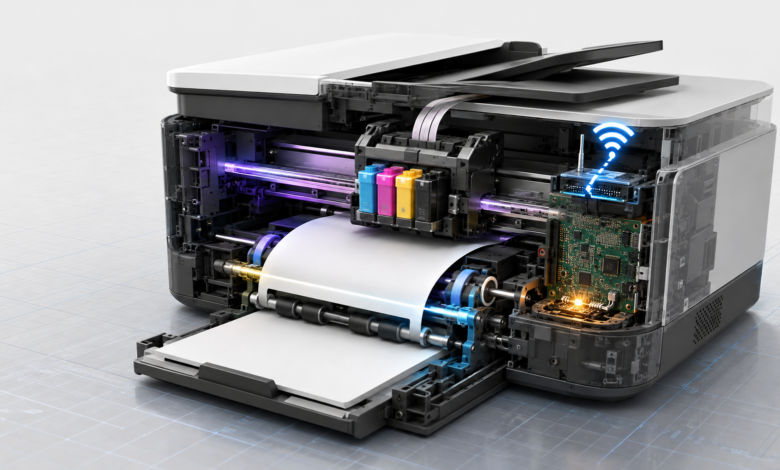
Quick answer: HP printer error codes explained — Error 13.xx (paper jam: open all access doors, remove jammed paper in the direction of the paper path, check for torn fragments with a flashlight); Error 49/79 (firmware error: unplug printer for 60 seconds, clear print queue, update firmware via HP Smart app); Error 50.x (fuser error: unplug for 30 minutes, if it returns the fuser unit needs replacement); 0xc19a0003 (ink system failure: run HP Print and Scan Doctor); “Cartridge problem” (remove cartridge, check for protective tape, clean copper contacts with distilled water, reseat firmly); “Printhead problem” (remove and clean printhead contacts, reseat firmly); wireless errors (run HP wireless setup wizard, run HP Print and Scan Doctor).
The HP Error 49 That Came Back Every Morning
The HP LaserJet showed Error 49 every morning at 8:47 AM — exactly when the office’s automated report system sent a 200-page PDF to the print queue. The first morning, the fix was a power cycle. The second morning, the same error at the same time. The third morning, the same. The pattern was the clue: the automated report was generated by an older application that embedded a PostScript command the HP LaserJet’s firmware could not parse. The fix was not a hardware repair — it was converting the automated report from PostScript to PCL in the application’s print settings. The Error 49 never returned.
That experience captures the most important thing about HP printer error codes explained: the same error code can have multiple causes, and the pattern of when the error occurs is as important as the error code itself. Error 49 that occurs only when printing from one specific application is a data compatibility issue. Error 49 that occurs on every print job is a firmware or hardware issue. Error 13.20 that occurs only with duplex printing is a duplex unit issue. Error 50.2 that occurs only when the printer is cold is a fuser warm-up issue. Reading the pattern — not just the error code — leads to the correct fix.
How HP Printer Error Codes Are Structured
HP printer error codes use several different formats depending on the printer model and the type of error. HP LaserJet printers use numeric codes with a decimal structure: the digits before the decimal identify the error category (13 = paper jam, 49 = firmware, 50 = fuser, 51 = laser/scanner, 52 = scanner motor, 54 = DC controller, 55 = DC controller, 57 = fan motor, 58 = DC controller, 59 = motor error, 62 = memory, 79 = firmware). The digits after the decimal identify the specific error within that category. HP inkjet printers (DeskJet, OfficeJet, ENVY) use hexadecimal codes (0xc19a for ink system errors) and plain-language messages (“Cartridge Problem,” “Printhead Problem,” “Paper Jam,” “Printer Offline”) rather than numeric codes. HP DesignJet large-format printers use a separate error code system with two-digit category codes.
The HP Smart app (available for Windows, macOS, iOS, and Android) displays error codes and plain-language descriptions for all HP printer models and provides direct links to HP’s troubleshooting documentation for each error. HP Print and Scan Doctor (available at hp.com/go/tools for Windows) is a free diagnostic tool that automatically identifies and resolves the most common HP printer error codes without manual troubleshooting.
HP Printer Error Codes Explained
HP Paper Jam Error Codes — 13.xx Series
HP LaserJet paper jam errors use the 13.xx format where the digits after 13 identify the location of the jam in the paper path. 13.00 or 13.0 indicates a jam in the paper input tray or the paper pickup area. 13.05 indicates a jam in the fuser area (the heated roller assembly that bonds toner to paper). 13.10 indicates a jam in the paper output area. 13.20 indicates a jam in the duplex unit (the automatic two-sided printing mechanism). 13.21 indicates a jam at the paper output. HP inkjet printers (DeskJet, OfficeJet, ENVY) display plain-language messages (“Paper Jam,” “Paper Stuck,” “Paper Jam in Carriage Area”) rather than 13.xx codes.
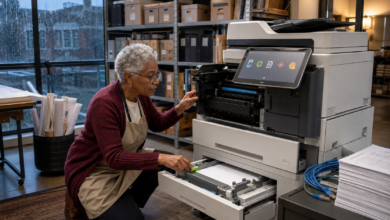
Fix for HP paper jam errors: turn off the printer and unplug the power cable from the back of the printer before reaching inside. Open all access doors — the paper input tray, the rear access panel (twist the green knobs or press the tabs to open), the front cover, and the duplex unit if present. Use a flashlight to inspect the entire paper path. Pull jammed paper gently in the direction of the paper path — for HP LaserJets, paper travels from the input tray upward through the fuser and out the top output tray. Never pull paper against the paper path direction, as this tears the paper and leaves fragments that cause repeated jam errors. After clearing the jam, check for torn paper fragments throughout the paper path. Remove and reinsert the paper tray, ensure the paper guides are snug against the paper stack, and restart the printer.
HP Firmware Error Codes — Error 49 and Error 79
HP Error 49 and Error 79 are firmware errors that occur when the printer’s formatter board receives data it cannot process. Error 49 is caused by corrupt print job data, incompatible PostScript or PCL commands, or a network communication error. Error 79 is caused by the same conditions plus firmware corruption on the formatter board itself. Both errors display on the printer’s control panel and halt all printing. The key diagnostic question is whether the error occurs on every print job (indicating a firmware or hardware issue) or only when printing from a specific application or file (indicating a data compatibility issue).
Fix for HP Error 49 and Error 79: turn off the printer and unplug the power cable from the back of the printer. Wait 60 seconds. Plug in and restart. If the error returns, open the print queue (Settings → Bluetooth & devices → Printers & scanners → select printer → Open print queue) and cancel all pending print jobs. If the error occurs only when printing from a specific application, change the print language in the application’s print settings from PostScript to PCL (or vice versa). If the error occurs on all print jobs, update the printer firmware: open HP Smart → select the printer → Printer Settings → Firmware Update, or download the firmware update from support.hp.com for the specific printer model. If the error persists after a firmware update, the formatter board is failing and requires replacement or professional service.
HP Fuser Error Codes — Error 50.x Series
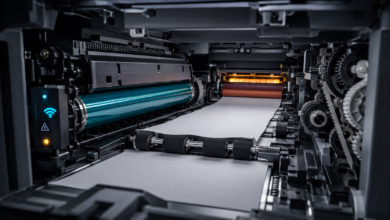
HP LaserJet fuser errors use the 50.x format where the digit after 50 identifies the specific fuser condition. 50.1 indicates the fuser is below the minimum operating temperature (fuser low temperature error — often occurs when the printer is in a cold environment or the fuser is failing). 50.2 indicates the fuser failed to reach operating temperature within the warm-up time limit (fuser warm-up failure — most common fuser error, often indicates a failing fuser). 50.3 indicates the fuser exceeded the maximum operating temperature (fuser high temperature error — indicates a fuser temperature sensor failure or a failing fuser). 50.4 indicates a fuser drive circuit error. 50.7 indicates a fuser pressure release mechanism failure. Fuser errors only occur on laser printers — HP inkjet printers do not have fusers.
Fix for HP fuser errors: turn off the printer and unplug the power cable. Wait 30 minutes to allow the fuser to cool completely. Plug in and restart. If the error clears after cooling, the fuser is failing and will eventually require replacement — monitor for recurrence. If the error returns immediately on startup (50.2 warm-up failure), the fuser has failed and requires replacement. HP fuser units are model-specific — verify the fuser part number for the specific printer model before ordering. Fuser replacement costs $40–$120 for the part and is a DIY repair on most HP LaserJet models (the fuser slides out of the printer after removing two screws or releasing two levers). Professional fuser replacement costs $100–$200 including parts and labor.
HP Ink and Cartridge Error Codes — 0xc19a, Cartridge Problem Messages
HP inkjet printer ink and cartridge errors use two formats: hexadecimal codes (0xc19a0003, 0xc19a0013, 0xc19a0023 for ink system failures) and plain-language messages (“Cartridge Problem,” “Ink Cartridge Not Compatible,” “Ink Cartridge Missing or Damaged,” “One or More Cartridges Appear to be Missing or Damaged”). The 0xc19a error codes indicate an ink system failure that may involve the ink delivery system, the printhead, or the cartridge contacts. Plain-language cartridge messages indicate a specific cartridge that is empty, incompatible, improperly seated, or has failed electrical contact with the printer.
Fix for HP cartridge errors: open the cartridge access door and remove the cartridge showing the error. Check that the orange or yellow protective tape has been removed from new cartridges — this tape covers the ink nozzles and copper contacts and must be removed before installation. Clean the cartridge’s copper electrical contacts with a lint-free cloth lightly dampened with distilled water (not tap water, not isopropyl alcohol — tap water leaves mineral deposits, alcohol can damage the contacts). Clean the corresponding contacts inside the printer carriage with a dry lint-free cloth. Reseat the cartridge firmly until it clicks. Verify the cartridge number matches the printer model exactly — HP 63 is compatible with HP DeskJet 1110, 2130, 3630 series; HP 65 is compatible with HP DeskJet 2600, 3700 series; HP 67 is compatible with HP DeskJet 2700, ENVY 6000 series; HP 910 is compatible with HP OfficeJet 8010, 8020 series. For 0xc19a errors, run HP Print and Scan Doctor from hp.com/go/tools.
⚠️ HP Printhead, Hardware, and Wireless Errors — Advanced Troubleshooting
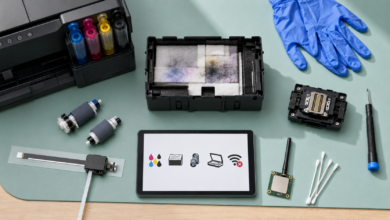
HP printhead errors (“Printhead Problem,” “Printhead Missing or Not Detected,” “Printhead Appears to be Missing, Not Detected, or Incorrectly Installed”) occur on HP printers with separate printhead units — primarily HP OfficeJet Pro 8000 series, HP Photosmart series, and HP DesignJet large-format printers. The printhead is the component that contains the ink nozzles and moves across the paper during printing; it is separate from the ink cartridges on these models. Printhead errors are caused by clogged ink nozzles, failed electrical contacts between the printhead and the carriage, or a failed printhead. Fix: remove all ink cartridges, remove the printhead by lifting the latch and pulling straight up, clean the printhead’s copper contacts and the carriage contacts with distilled water, reinstall the printhead firmly until it clicks, reinstall the cartridges, and restart the printer. If the error persists after cleaning and reseating, the printhead requires replacement ($30–$80, user-replaceable on most models).
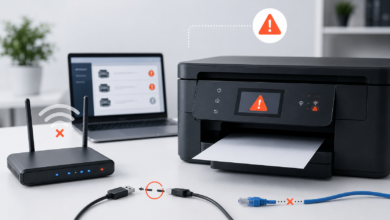
HP wireless errors (“Printer Offline,” “Unable to Connect to Printer,” “Printer Not Found on Network”) are resolved by restarting the printer and router, running the HP wireless setup wizard (printer control panel → Settings → Wireless Setup Wizard), and running HP Print and Scan Doctor. Assign the printer a static IP address in the router’s DHCP reservation settings to prevent the IP address from changing after router restarts — this eliminates the most common cause of recurring wireless errors. HP hardware errors that require professional service include: Error 51.x (laser/scanner failure — the laser scanner assembly requires replacement), Error 52.x (scanner motor failure), Error 57.x (fan motor failure), and Error 59.x (motor error). These errors are accompanied by unusual sounds (grinding, clicking, or squealing) and require HP-authorized service center repair. Check warranty status at support.hp.com before paying for out-of-warranty repair — HP offers extended warranty plans (HP Care Pack) that cover hardware failures.
How to Fix HP Printer Error Codes: Step-by-Step
Step 1: Note the Exact Error Code and Look It Up on HP Support
Note the exact error code or message displayed on the printer’s control panel or in the HP Smart app notification. For HP LaserJet printers, the error code appears on the printer’s display panel (e.g., “49 Service Error,” “13.20.00 Paper Jam”). For HP inkjet printers, the error appears as a plain-language message in the HP Smart app or as a Windows notification. Look up the exact error code at support.hp.com — enter the printer model number (printed on the front or bottom of the printer, e.g., “HP DeskJet 3755” or “HP LaserJet Pro M404n”) and the error code. HP’s support site provides model-specific troubleshooting steps that account for differences between printer generations.
Step 2: Run HP Print and Scan Doctor
HP Print and Scan Doctor is a free Windows diagnostic tool available at hp.com/go/tools that automatically identifies and resolves the most common HP printer error codes. Download and run the tool — it checks the printer connection, the print spooler, the printer driver, the ink levels, and the printer’s communication with the computer, and automatically fixes issues it detects. HP Print and Scan Doctor resolves approximately 70% of HP printer error codes without manual troubleshooting. Run it before attempting any manual fix. For macOS, use the HP Utility application (Applications → HP → HP Utility) which provides similar diagnostic functions.
Step 3: Perform a Full Power Cycle and Clear the Print Queue
Turn off the printer using the power button. Unplug the power cable from the back of the printer (not just from the wall outlet). Wait 60 seconds. Plug the power cable back into the printer and turn it on. While the printer restarts, clear the print queue on the computer: Settings → Bluetooth & devices → Printers & scanners → select the printer → Open print queue → cancel all pending jobs. If jobs cannot be cancelled, restart the Print Spooler service: press Win+R → type “services.msc” → find “Print Spooler” → right-click → Restart. A full power cycle combined with a print queue clear resolves Error 49, Error 79, and most temporary firmware errors.
Step 4: Update the HP Printer Firmware
Outdated firmware is a common cause of HP Error 49, Error 79, cartridge compatibility errors, and wireless connection errors. Update the firmware using the HP Smart app: open HP Smart → select the printer → Printer Settings → Firmware Update → Check for Updates → Install. Alternatively, download the firmware update directly from support.hp.com for the specific printer model and run the installer. HP releases firmware updates that add compatibility for new cartridge chip versions — if a new genuine HP cartridge shows a “cartridge problem” error on an older printer, a firmware update often resolves the incompatibility. Do not interrupt a firmware update in progress — a failed firmware update can render the printer inoperable and require HP service to recover.
Step 5: Reinstall the HP Printer Driver or Contact HP Support
If the error persists after a power cycle, print queue clear, and firmware update, reinstall the HP printer driver. In Windows, go to Settings → Bluetooth & devices → Printers & scanners → select the printer → Remove device. Download the full HP driver package from support.hp.com for the specific printer model and Windows version — use the “Full Feature Software and Driver” package, not the “Basic Driver.” Run the installer and follow the HP setup wizard. For errors that persist after driver reinstallation — particularly Error 50.x (fuser), Error 51.x (laser scanner), Error 57.x (fan), and Error 59.x (motor) — contact HP Support at support.hp.com/contact or call HP’s printer support line. Check the printer’s warranty status at support.hp.com/us-en/checkwarranty before contacting support — HP provides free repair or replacement for printers under warranty.
Frequently Asked Questions About HP Printer Error Codes
What does HP Error 49 mean and how do I fix it?
HP Error 49 is a firmware error caused by corrupt print job data, incompatible PostScript or PCL commands, or a network communication error. Fix: unplug the printer for 60 seconds, clear all print jobs from the queue, and restart. If the error occurs only when printing from a specific application, change the print language from PostScript to PCL in the application’s print settings. If the error occurs on all print jobs, update the firmware via HP Smart or support.hp.com.
What does HP Error 50.2 mean?
HP Error 50.2 is a fuser warm-up failure — the fuser unit failed to reach operating temperature within the allowed warm-up time. This is the most common fuser error and almost always indicates a failing fuser unit. Fix: unplug the printer for 30 minutes to allow the fuser to cool, then restart. If the error returns immediately on startup, the fuser requires replacement. HP fuser units are model-specific — verify the part number at support.hp.com before ordering.
How do I fix the HP 0xc19a0003 error?
HP error 0xc19a0003 is an ink system failure. Fix: (1) Run HP Print and Scan Doctor from hp.com/go/tools. (2) Remove all ink cartridges, clean the copper contacts with distilled water, and reseat firmly. (3) If the error persists, remove and clean the printhead (on models with separate printheads). (4) If the error persists after cleaning, the printhead or ink delivery system has failed — contact HP Support.
Why does my HP printer keep showing “cartridge problem” with a new cartridge?
A new HP cartridge showing “cartridge problem” is usually caused by: the protective tape not being fully removed (check for any remaining tape on the cartridge contacts or nozzles), the cartridge number not matching the printer model (verify the cartridge number on HP’s compatibility page), or outdated printer firmware that does not recognize the new cartridge chip version (update firmware via HP Smart). If a genuine HP cartridge shows the error after all these steps, the cartridge may be defective — HP offers a replacement guarantee for defective genuine cartridges.
How do I fix HP wireless printer errors permanently?
To permanently fix HP wireless printer errors: (1) Assign the printer a static IP address in the router’s DHCP reservation settings (use the printer’s MAC address, printed on the network configuration page). (2) Disable “Let Windows manage my default printer” in Settings → Bluetooth & devices → Printers & scanners. (3) Set the printer’s sleep mode to a longer interval or disable sleep mode on the printer’s control panel (Settings → Power Management → Sleep Mode Delay) — printers that enter deep sleep drop the Wi-Fi connection and take time to reconnect. (4) Ensure the router’s 2.4 GHz and 5 GHz networks have different names — HP printers connect to 2.4 GHz only and may fail if the router uses the same name for both bands.
HP Printer Error Code Repair Costs
| Error Code / Problem | Common Cause | DIY Part Cost (USD) | Professional Repair Cost (USD) |
|---|---|---|---|
| Error 13.xx (paper jam) | Misloaded paper, paper fragment, worn pickup roller | $0 (no parts) — $15–$25 (pickup roller kit) | $50–$100 (service call) |
| Error 49 / Error 79 (firmware) | Corrupt print job, incompatible data, failing formatter board | $0 (firmware update) — $80–$200 (formatter board) | $100–$250 (diagnosis + formatter board) |
| Error 50.2 (fuser warm-up failure) | Failing fuser unit | $40–$120 (fuser unit, DIY replacement) | $100–$200 (parts + labor) |
| Error 50.1 / 50.3 (fuser temperature) | Fuser temperature sensor or fuser failure | $40–$120 (fuser unit) | $100–$200 (parts + labor) |
| 0xc19a0003 (ink system failure) | Printhead failure or ink delivery system failure | $30–$80 (printhead, user-replaceable) | $80–$150 (HP service center) |
| Cartridge problem (inkjet) | Empty, incompatible, or failed cartridge | $15–$45 (genuine HP cartridge) | $0 (usually resolved by cartridge replacement) |
| Error 51.x (laser/scanner failure) | Laser scanner assembly failure | $60–$150 (laser scanner assembly) | $150–$300 (HP service center) |
| Wireless / printer offline | Wi-Fi dropout, spooler crash, driver issue | $0 (software fix) | $50–$75 (remote support session) |
Conclusion: The Pattern of the Error Is as Important as the Error Code
The HP Error 49 that appeared every morning at 8:47 AM — caused by a PostScript command in an automated report — was not a hardware problem. It was a data compatibility problem that looked like a hardware problem because it occurred consistently. The fix was changing a print setting in the reporting application, not replacing any hardware. That is the most important lesson about HP printer error codes explained: the pattern of when the error occurs — which application, which file type, which time of day, which paper tray, which print job — is as important as the error code itself.
HP’s error code structure provides the starting point: 13.xx means paper path, 49/79 means firmware/data, 50.x means fuser, 0xc19a means ink system, “cartridge problem” means cartridge subsystem, “printhead problem” means printhead. The pattern of the error narrows the cause within that category. HP Print and Scan Doctor automates the diagnostic process for software-related errors. For hardware errors — fuser failures (50.x), laser scanner failures (51.x), formatter board failures (persistent 49/79) — compare the repair cost to the cost of a new printer before committing to a repair. HP LaserJet printers are generally worth repairing for fuser and formatter board replacements. HP inkjet printers ($50–$150) are often less expensive to replace than to repair for printhead or ink system failures.
Sources
- HP Support — HP Printer Error Codes and Troubleshooting Documentation. Available at: support.hp.com
- HP Print and Scan Doctor — Free HP Printer Diagnostic Tool for Windows. Available at: hp.com/go/tools
- HP Smart App — HP Printer Management and Error Notification App for Windows, macOS, iOS, and Android. Available at: hp.com/us-en/shop/pdp/hp-smart
- HP Warranty Check — Check HP Printer Warranty Status. Available at: support.hp.com/us-en/checkwarranty
- Microsoft Support — Fix Printer Connection and Printing Problems in Windows. Available at: support.microsoft.com