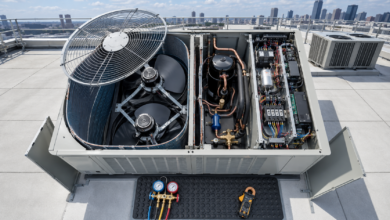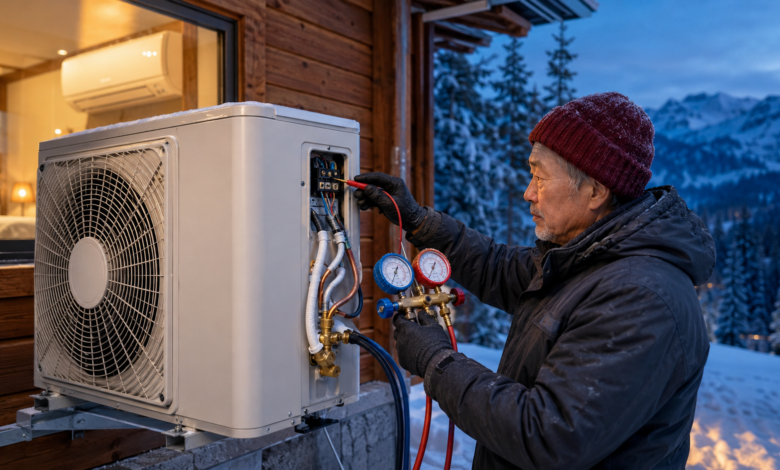
Quick answer: Mini split error codes fall into four categories — temperature sensor errors (E1–E3, F1–F3), communication errors (E6, F6, U8), refrigerant and compressor errors (P1, P2, H6 — technician required), and airflow errors (E5, F5 — usually a dirty filter). A power reset resolves many temporary errors. Refrigerant and compressor errors require a certified HVAC technician — refrigerant handling is regulated by the EPA.
The Mini Split That Stopped Cooling in July
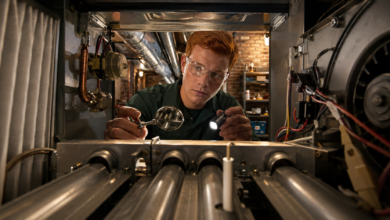
The bedroom mini split had been running flawlessly for three summers. Then, on a July afternoon, it displayed “E1” and switched to fan-only mode — blowing room-temperature air while the outdoor unit sat silent. I assumed the worst: refrigerant leak, compressor failure, expensive repair. I was wrong. The E1 code on my Mitsubishi unit indicated an indoor temperature sensor failure — a $12 thermistor that I replaced in 25 minutes.
That experience taught me the most important lesson about mini split error codes: the code that looks alarming is often the cheapest fix, and the code that looks minor (a blinking light, a brief shutdown) can indicate the most serious fault. Understanding what each code category means — and which ones require a technician versus a $12 part — is the difference between a 25-minute DIY repair and an unnecessary $200 service call.
Mini Split Error Codes by Brand: What You Need to Know First
Mini split error codes are not standardized across manufacturers. The same code — E1, P1, H6 — means different things on different brands. Before troubleshooting any mini split error code, you need three pieces of information: the brand name, the model number (on the indoor unit’s label, typically on the side or inside the front panel), and the error code displayed. With these three pieces of information, you can find the exact service documentation for your unit.
The major mini split brands sold in the United States — Mitsubishi, Daikin, LG, Fujitsu, Gree, Midea, Pioneer, and others — each publish service manuals that include complete error code tables and diagnostic flowcharts. These are available on the manufacturer’s website or by searching “[brand] [model number] service manual.” The service manual is the authoritative source for your specific unit — not generic error code lists, which are frequently inaccurate across brands.
Despite this variation, mini split error codes consistently fall into four fault categories. Understanding these categories allows you to make an accurate first assessment before looking up the model-specific documentation.
The 5 Mini Split Error Code Categories
1. Temperature Sensor Errors — Indoor and Outdoor Thermistor Failure
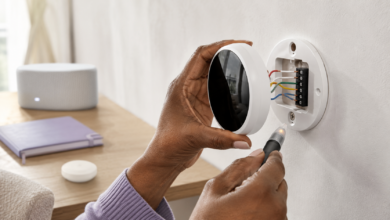
Temperature sensor errors are the most common mini split error codes and the most frequently misdiagnosed. They indicate that one of the unit’s thermistors has failed — either open circuit (infinite resistance) or short circuit (near-zero resistance). The affected thermistor may be the indoor room temperature sensor (reads ambient air temperature), the indoor coil sensor (reads evaporator coil temperature), or the outdoor temperature sensor (reads outdoor ambient temperature). Common codes: E1, E2, E3 (indoor room, indoor coil, outdoor) or F1, F2, F3 — varies by brand.
Thermistors are NTC (negative temperature coefficient) resistors and can be tested with a multimeter. Disconnect the thermistor connector and measure resistance — compare the reading against the resistance-temperature table in the service manual at the current ambient temperature. A reading of 0Ω (short) or OL (open) confirms failure. Replacement thermistors are brand-specific but widely available online for $5–$30. The repair requires removing the indoor unit’s front panel and cover, disconnecting the old thermistor, and routing the new one through the same path — typically a 20–30 minute repair.
2. Communication Errors — Indoor-Outdoor Unit Signal Loss
Communication errors indicate that the indoor unit’s control board and the outdoor unit’s control board cannot exchange data signals. Common codes: E6, F6, U8, Ub, CE. The communication cable between the two units is a dedicated signal wire (separate from the power cables) — typically 2 or 3 conductors connected to terminals labeled S, S1/S2, or COM on both units.
The diagnostic sequence for communication errors: first, perform a power reset (circuit breaker off for 5 minutes). If E6 returns, inspect the communication cable for physical damage, corrosion at the terminal screws, and loose connections. Tighten all terminal screws and clean corroded contacts with electrical contact cleaner. If the cable is damaged, replace it using the same wire gauge specified in the installation manual. If wiring is intact and the error persists, the fault is in one of the control boards — this requires professional diagnosis with a multimeter and the service manual’s diagnostic flowchart.
3. Refrigerant and Compressor Errors — Pressure Faults and Compressor Protection
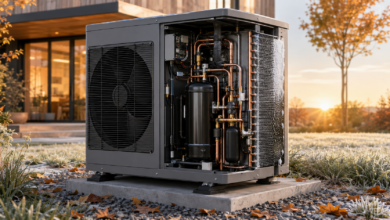
Refrigerant and compressor errors are the most serious mini split fault category. They include low refrigerant pressure errors (P1, E9 — refrigerant leak or undercharge), high refrigerant pressure errors (P2, E8 — blocked condenser coil or refrigerant overcharge), and compressor protection errors (H6, P0 — compressor overload, locked rotor, or inverter fault).
⚠️ Critical safety and legal note: Refrigerant and compressor errors require a certified HVAC technician. In the United States, purchasing, handling, or venting refrigerants without EPA Section 608 certification is a federal violation carrying fines up to $44,539 per day. Modern mini splits use R-410A, R-32, or R-290 refrigerants — R-32 and R-290 are mildly flammable and require additional handling precautions. Never attempt to add refrigerant, check system pressure, or diagnose compressor faults without proper certification and equipment.
4. Airflow Errors — Dirty Filter, Blocked Coil, or Fan Motor Failure
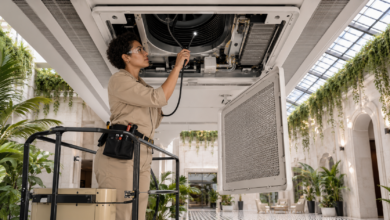
Airflow errors indicate that the indoor unit cannot move air at the required rate across the evaporator coil. Common codes: E5, F5, C5, or a dedicated “clean filter” indicator. The most common cause is a dirty air filter — a clogged filter restricts airflow, causes the evaporator coil to ice over, and triggers a protection shutdown. Mini split filters should be cleaned every 2–4 weeks during heavy use periods.
If cleaning the filter does not resolve the airflow error, inspect the evaporator coil for ice buildup (turn the unit off and allow it to defrost for 1–2 hours before restarting), check that the indoor unit’s louvers and vanes move freely, and check that the indoor blower wheel is not obstructed by debris. Indoor blower motor failure is the next most common cause after filter neglect — motor replacement costs $30–$80 for the part and is DIY-accessible on most mini split indoor units.
5. Inverter and Drive Errors — Inverter Board or IPM Module Failure
Inverter errors are specific to the variable-speed compressor drive system that defines all modern mini splits. Common codes: H5, P6, Pd, U2, Ub. They indicate a fault in the outdoor unit’s inverter board (which controls compressor speed) or the IPM (Intelligent Power Module) that drives the compressor motor windings. Inverter errors are frequently caused by power surges, sustained voltage fluctuations, or overheating of the outdoor unit’s electrical compartment.
Before assuming inverter board failure, verify that the outdoor unit’s power supply voltage is within the unit’s specified range (typically ±10% of rated voltage — check the data plate on the outdoor unit). Sustained undervoltage or overvoltage will damage inverter boards repeatedly. If voltage is correct and the error persists, inverter board replacement is required — boards cost $80–$300 depending on brand and model. This repair is technically DIY-accessible but requires careful attention to static discharge precautions and correct board orientation.
Mini Split Error Code Fixes: Step-by-Step
Step 1: Perform a Power Reset
Turn off the mini split using the remote control, then locate the dedicated circuit breaker for the mini split system (typically a 15A or 20A double-pole breaker in the main panel) and turn it off. Wait 5 minutes — this allows both the indoor and outdoor control boards to fully discharge and reset. Restore power and observe whether the error code returns. A code that clears after a reset and does not return within 24 hours was likely caused by a power fluctuation or a temporary sensor glitch. A code that returns within minutes of a reset indicates a persistent hardware fault.
Step 2: Clean the Air Filter
Open the indoor unit’s front panel by lifting it upward — most mini split panels hinge open without tools. Slide out the mesh filter panels (typically two panels side by side). Wash with warm water and mild detergent, rinse thoroughly, and allow to dry completely before reinstalling. While the filters are out, inspect the evaporator coil fins for visible debris or ice. If the coil is iced over, leave the unit off for 1–2 hours to allow complete defrost before restarting. Reinstall only fully dry filters — a wet filter restricts airflow more than a dirty one.
Step 3: Test the Thermistor (for Sensor Error Codes)
For E1, E2, E3, F1, F2, or F3 errors, locate the thermistor connector on the indoor unit’s control board. Thermistors are small cylindrical sensors attached to thin wires — the room temperature sensor is typically clipped to the front of the unit near the air intake, and the coil sensor is clipped to the evaporator coil fins. Disconnect the thermistor connector and measure resistance with a multimeter set to the 20kΩ range. At room temperature (approximately 77°F / 25°C), most mini split thermistors read 10kΩ–15kΩ. A reading of 0Ω or OL (open loop) confirms failure. Order the replacement thermistor by brand and model number — install in reverse order of removal.
Step 4: Inspect the Communication Wiring (for E6 / Communication Errors)
Turn off the circuit breaker before inspecting wiring. At the indoor unit, remove the wiring cover panel (typically 2–4 screws) to access the terminal block. Locate the communication terminals (labeled S, S1/S2, or COM) and check that the communication wire is firmly seated under the terminal screw — tighten with a screwdriver. Repeat at the outdoor unit’s terminal block. Inspect the full length of the communication cable between the two units for physical damage, pinching, or rodent damage. If the cable is damaged, replace it with the same wire gauge (typically 14 AWG or 18 AWG — check the installation manual) and the same number of conductors.
Step 5: Call a Technician for Refrigerant, Compressor, and Inverter Errors
For P1, P2, H6, P0, H5, P6, and related codes, contact a certified HVAC technician. When calling, provide the brand name, model number, and the exact error code — this allows the technician to arrive with the correct diagnostic equipment and likely replacement parts. For refrigerant errors (P1, P2), confirm that the technician is EPA Section 608 certified before authorizing work. For compressor errors on units older than 8–10 years, request a replacement cost comparison before authorizing a compressor repair — compressor replacement often approaches the cost of a new system.
Frequently Asked Questions About Mini Split Error Codes
What are the most common mini split error codes?
The most common mini split error codes are temperature sensor errors (E1, E2, E3 — indoor room sensor, indoor coil sensor, outdoor sensor), communication errors (E6, F6, U8 — indoor-outdoor unit signal loss), refrigerant pressure errors (P1 low pressure, P2 high pressure), compressor protection errors (H6, P0), and airflow errors (E5, F5 — dirty filter or fan motor). Codes vary significantly by brand — always verify with your specific brand and model number.
What does E6 mean on a mini split?
E6 most commonly indicates a communication error between the indoor and outdoor units. Start with a power reset (circuit breaker off for 5 minutes). If E6 returns, inspect the communication cable for damage or loose terminal connections at both units. Tighten all terminal screws and clean corroded contacts. If wiring is intact and E6 persists, the fault is in a control board — contact a technician. On some brands (notably Gree and Midea), E6 may indicate a different fault — always verify with your model’s service documentation.
What does P1 mean on a mini split?
P1 indicates a low refrigerant pressure error — the system refrigerant charge is below the minimum operating pressure. This is caused by a refrigerant leak or an undercharged system. P1 always requires a certified HVAC technician: the leak must be located (typically with an electronic leak detector or UV dye), repaired, and the system recharged to the manufacturer’s specified pressure. Do not attempt to add refrigerant yourself — it is a federal violation without EPA Section 608 certification.
How do I reset a mini split error code?
Turn off the unit with the remote, then turn off the dedicated circuit breaker for the mini split and wait 5 minutes before restoring power. Some brands also have a reset button on the indoor unit’s control board (accessible after removing the front panel) or a remote control reset sequence — check your owner’s manual. If the error returns after the reset, the underlying fault has not been resolved and the relevant component needs to be diagnosed.
Can I fix a mini split error code myself?
Yes — for sensor errors (E1, E2, E3), airflow errors (E5), and communication wiring errors (E6 with a damaged cable), DIY repair is feasible. Thermistor replacement costs $5–$30 and requires only a screwdriver and multimeter. Filter cleaning is free. Communication cable replacement requires matching the wire gauge in the installation manual. For refrigerant errors (P1, P2), compressor errors (H6, P0), and inverter errors (H5, P6), professional service is required.
Mini Split Repair Cost by Error Code Type
The table below provides estimated repair cost ranges for the most common mini split error code causes in the United States. DIY costs reflect the part only; professional costs include a typical service call and labor. Refrigerant-related repairs are professional-only.
| Error Code | Common Cause | DIY Part Cost (USD) | Professional Repair Cost (USD) |
|---|---|---|---|
| E1 / F1 — Indoor room sensor | Room temperature thermistor failure | $5 – $20 | $80 – $200 |
| E2 / F2 — Indoor coil sensor | Evaporator coil thermistor failure | $5 – $20 | $80 – $200 |
| E3 / F3 — Outdoor sensor | Outdoor temperature thermistor failure | $10 – $30 | $100 – $250 |
| E5 / F5 — Airflow error | Dirty filter or indoor fan motor failure | $0 – $80 | $80 – $200 |
| E6 / F6 / U8 — Communication error | Communication cable or control board failure | $5 – $50 (cable) | $100 – $400 |
| P1 / E9 — Low refrigerant pressure | Refrigerant leak or undercharge | Not applicable | $200 – $700+ |
| P2 / E8 — High refrigerant pressure | Blocked condenser or overcharge | Not applicable | $100 – $400 |
| H6 / P0 — Compressor protection | Compressor overload or locked rotor | Not applicable | $400 – $1,800+ |
| H5 / P6 / Pd — Inverter error | Inverter board or IPM module failure | $80 – $300 (board) | $200 – $600 |
Note: Costs are estimates based on typical U.S. market rates as of 2024–2025. Compressor replacement on a mini split often approaches or exceeds the cost of a new system — for units older than 8–10 years with a compressor error, full system replacement is frequently more cost-effective. Always obtain a written estimate before authorizing repairs. Refrigerant handling requires EPA Section 608 certification.
Conclusion: Know Your Code Category Before You Call Anyone
The E1 error that stopped my bedroom mini split on a July afternoon cost $12 and 25 minutes to fix. If I had called a technician without understanding the code, I would have paid $150–$200 for a service call and a thermistor replacement that I could have done myself. The lesson is not that you should always attempt DIY repairs — it is that understanding the error code category tells you immediately whether DIY is appropriate.
Mini split error codes divide cleanly into two groups: codes you can address yourself (sensor errors, airflow errors, communication wiring errors) and codes that require a certified HVAC technician (refrigerant pressure errors, compressor errors, and inverter faults that cannot be resolved by voltage correction). The first group covers the majority of mini split error codes that homeowners encounter. The second group is clearly defined and non-negotiable.
Always start with a power reset and filter cleaning — these two steps resolve a significant share of mini split error codes at zero cost. Then look up the code with your specific brand and model number. Test the thermistor if the code points to a sensor. Inspect the communication wiring if the code points to E6. And for P1, P2, H6, and compressor codes — call a certified technician and do not attempt refrigerant work yourself.
Sources
- U.S. Environmental Protection Agency (EPA) — Section 608 Refrigerant Management Regulations. Available at: www.epa.gov/section608
- Air-Conditioning, Heating, and Refrigeration Institute (AHRI) — Industry Standards for Ductless Mini Split Systems. Available at: www.ahrinet.org
- North American Technician Excellence (NATE) — HVAC Technician Certification Standards. Available at: www.natex.org
- U.S. Department of Energy (DOE) — Ductless Mini Split Heat Pump Technology Overview. Available at: www.energy.gov
- Consumer Reports — Ductless Air Conditioner Reliability and Repair Cost Survey, 2023. Available at: www.consumerreports.org